The best smart TV for seniors prioritizes a simple interface, large text, and voice control features to ensure ease of use. Platforms like Roku are often recommended for their straightforward navigation; however, the key to a stress-free experience lies in removing unnecessary apps and clutter from the home screen during setup.
Modern televisions often feel like complicated computers rather than simple entertainment devices. The frustration of navigating endless menus, tiny buttons, and confusing updates can turn a relaxing evening into a technical headache. Technology should enhance your quality of life; it should not create barriers to enjoying your favorite programs or staying connected to the world. A properly configured setup ensures that high definition entertainment remains accessible without the need for constant troubleshooting. This guide provides a strategic roadmap for selecting the best senior-friendly models. You will discover how to streamline complex interfaces, master voice commands, and optimize accessibility settings for better visibility. Whether you need help navigating Netflix or finding local support in Phoenix; these practical steps will help you reclaim control of your living room.
Why Modern Smart TVs Feel So Complicated
Television used to be straightforward. You turned a dial or pressed a single button, and the picture appeared instantly. Today, finding a smart TV for seniors that operates with that same level of simplicity is a significant challenge. The transition from physical channel tuners to complex, app-based interfaces has fundamentally changed how we interact with our living room technology.
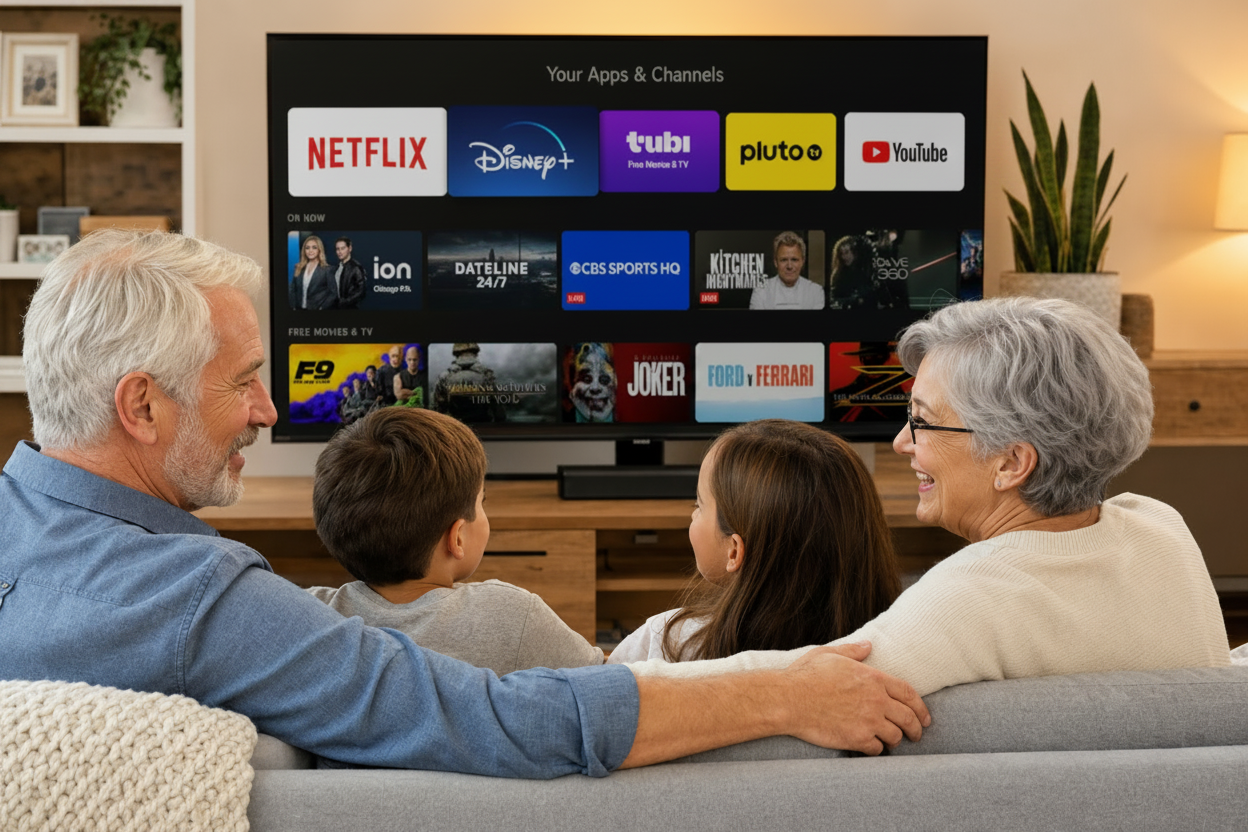
If you feel overwhelmed by your new television, it is important to realize that the frustration is rarely due to a lack of ability. Instead, modern interfaces are often intentionally cluttered. Manufacturers often prioritize data collection and advertising revenue over user-friendly navigation. Home screens are frequently filled with scrolling carousels, auto-playing trailers, and rows of recommendations for shows you have no interest in watching. This visual noise creates a persistent barrier between you and your favorite programs.
At Digital Assistant, we provide patient and personal tech help to cut through this digital clutter. We recognize that a television should be a tool for relaxation, not a source of cognitive load. By identifying these poor design choices, we can begin to reconfigure your device's settings to reflect old-school habits, ensuring the technology serves you rather than the advertisers.
The Best Smart TV for Seniors
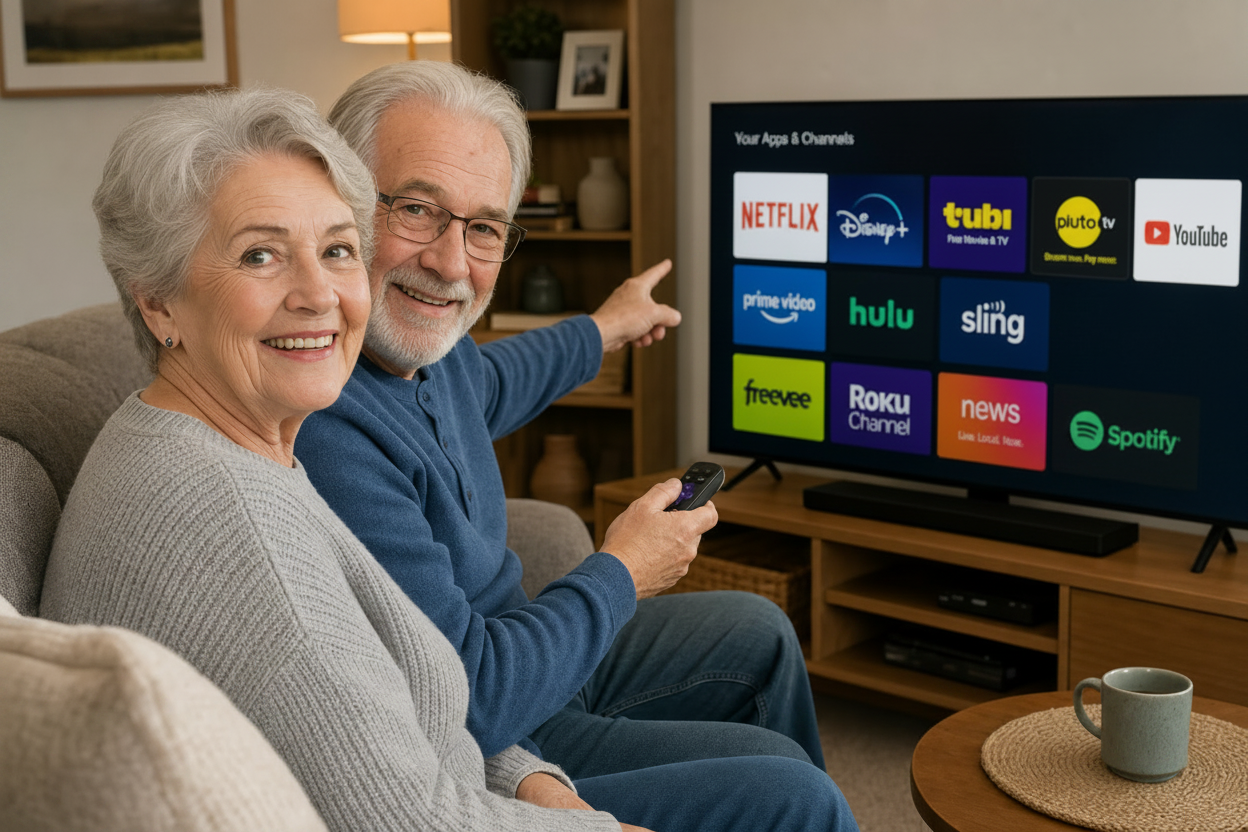
Choosing the right hardware is the first step in reclaiming a simple viewing experience. While many brands offer high-resolution displays, the software running behind the screen determines how easy the device is to use daily. We frequently recommend Roku-based TVs, such as those manufactured by TCL or Hisense, as the most reliable smart TV for seniors. The primary advantage of the Roku interface is its use of large, static blocks. Unlike other systems that use shifting carousels of content, Roku provides a predictable grid that stays put. This visual stability is essential for users who want to find their favorite apps without the screen moving unexpectedly.
In contrast, Samsung’s Tizen and LG’s webOS platforms are designed to be visually stimulating. They often feature "hover" menus and ribbons that expand when highlighted. While sleek, these interfaces are significantly more prone to accidental clicks. If a user lingers too long on an icon, the TV may begin playing a preview or open a sub-menu, which can be disorienting.
Platform | Primary Interface Style | Best Feature for Seniors |
|---|---|---|
Roku (TCL/Hisense) | Static Grid | Predictable navigation and large icons |
Samsung (Tizen) | Pop-up Ribbon | High-quality hardware and bright displays |
LG (webOS) | Floating Tiles | Modern look but requires steady hand coordination |
When shopping, it is equally important to know which sets to avoid. We suggest staying away from ultra-budget brands that utilize underpowered processors. A slow processor creates a lag between pressing a button on the remote and seeing the action on the screen. This delay often leads users to press the button a second or third time, causing the TV to eventually "jump" several screens ahead. We also advise avoiding TVs with aggressive, full-screen advertisements that occupy the top half of the home page. Our team often assists with these hardware decisions through in-home visits and virtual support to ensure the TV you buy is one you actually enjoy using.
How to Simplify Your Roku or Smart TV Interface
Once you have selected a high quality display, the next step is to declutter the software. A standard smart TV for seniors arrives with dozens of pre-installed apps that the user may never touch. These icons act as digital weeds, crowding out the programs you actually enjoy. The most effective way to simplify your experience is to delete everything you do not use. If you do not have subscriptions to Apple TV+, ESPN+, or Disney+, remove them from the home screen entirely. On a Roku, you can do this by highlighting the app and pressing the star button on your remote.
Beyond deleting apps, you should actively hide Recommended Content and Store tabs within the system settings. These rows are often designed to look like your own library but are actually advertisements meant to sell you new movies. By disabling these in the Home Screen settings menu, you can shrink the grid until it contains only the four or five apps you use daily. This reduces the cognitive effort required to find your favorite shows and creates a much cleaner visual environment.
Finally, turn off the Autoplay feature found in many app settings and system menus. There is nothing more startling than a loud movie trailer playing automatically when you are simply trying to read the screen. Eliminating this background movement creates a static, calm environment that is much easier to navigate. If these steps feel daunting, our team provides in-home visits and virtual support to handle the technical cleanup for you. We focus on creating a streamlined interface that allows you to focus on the content, not the controls.
Mastering the Remote: Voice Control and Universal Options
Even with a clean interface, the physical remote remains the primary gateway to your entertainment. Modern remotes are often designed to be sleek and minimalist, which unfortunately makes them slippery, thin, and difficult to grip. If you find the standard remote frustrating, the most effective tool at your disposal is the voice search function. Most Roku, Samsung, and LG remotes now feature a dedicated microphone button. Instead of using the arrow keys to hunt and peck letters on a digital keyboard, you can simply press and hold the mic button and speak naturally. Saying commands like "Find Matlock on YouTube" or "Open Netflix" bypasses several layers of navigation entirely.
For those who struggle with the small size of factory remotes, several tactile solutions can make a significant difference. A brightly colored silicone cover can provide a better grip and make the remote easier to spot on a dark couch. If the buttons themselves are too small or confusing, we often recommend universal remotes like the Flipper. These devices feature large, high-contrast buttons and can be programmed to handle only the essentials: power, volume, and channel selection. This eliminates the risk of accidentally pressing a "source" or "menu" button that might change the TV input and cause a loss of picture.
Selecting the right physical interface is just as important as the software setup. Our team provides patient and personal tech help to ensure your remote is configured correctly for your hand strength and vision. We can help you sync a simplified remote or teach you the specific cadence required for voice commands to work every time.
A Beginner's Guide to Streaming Apps: Paid and Free

Understanding the core applications is the final piece of the puzzle. Once your remote is configured, the interface of a modern smart TV for seniors typically revolves around a mix of paid and free services, each offering a different type of content.
Netflix functions as a massive digital library. You do not wait for a specific time to watch a show; instead, you browse a collection and start a program whenever you like. It is ideal for long form dramas or classic movies without commercial interruptions, though it does require a monthly subscription. YouTube serves a different purpose. It is the best destination for how-to videos, historical documentaries, and localized news clips. If you want to learn how to prune a desert rose or see a replay of a local Phoenix news segment, YouTube is the tool to use, and it is completely free. Amazon Prime Video is unique because many seniors already pay for it through their Amazon shipping membership without realizing it. If you pay for Prime shipping, you likely have access to thousands of movies at no additional cost.
For seniors who want to avoid subscription costs entirely, three free apps are worth knowing. Tubi offers a large library of movies and older TV shows for free, supported by short commercial breaks. There is no credit card required and no monthly bill. Pluto TV works a bit differently: it is a free service that mimics live TV channels, with the same guide-style browsing many seniors already know and love. Kanopy is a hidden gem available through many public libraries. If you have a Phoenix or Maricopa County library card, you can watch a set number of free films each month, often including classic movies, documentaries, and independent films with no ads at all.
Service | Primary Use | Cost |
|---|---|---|
Netflix | Movies and TV series | Monthly subscription |
Disney+ | Movies, shows, and Originals | Monthly subscription |
Amazon Prime Video | Movies and Originals | Included with Prime shipping |
YouTube | Education and news | Free (with ads) |
Tubi | Movies and older TV shows | Free (with ads) |
Pluto TV | Live-style TV channels | Free (with ads) |
Kanopy | Classic and independent films | Free with library card |
When you open these apps, you may see a screen asking "Who is watching?" These are called Profiles. While helpful for large families, they can be confusing for a single user. We recommend setting up only one profile to eliminate this extra step. Additionally, be cautious of buttons labeled "Rent" or "Buy," particularly on Amazon. These represent in-app purchases that will charge the credit card you have on file.
Signing In vs. Activating an Existing Account
One of the most common and costly mistakes seniors make is accidentally creating a brand new, paid account when they already have one. This happens because of two different setup steps that sound similar but are not the same.
Logging into the TV itself means signing into the TV's built-in system, such as the Roku account or your Samsung or LG account. This is separate from your streaming subscriptions. The Roku account is mainly used to manage your device, download apps, and remember your settings. Signing into the Roku account does not create a Netflix or Disney+ subscription.
Activating a streaming app is the step where you connect an account you already own. Suppose you already pay for Disney+ on your phone or computer. When you open the Disney+ app on your new TV for the first time, it will show a code on the screen and ask you to visit a website on another device to enter that code. This links the app to your existing Disney+ account, so you can watch the same shows without paying again.
If instead you select "Sign Up" or "Start Free Trial" inside the app, you may end up creating a brand new subscription and paying twice for the same service. Before you sign up for anything, take a moment to check whether you already have an active account on your phone, tablet, or computer. If you do, choose the option to sign in or activate, never sign up.
This is exactly the kind of detail that is easy to miss, but a duplicate account can quietly add up to real money over time. If you are ever unsure which button to press, it is safer to pause and ask for help than to risk a second subscription.
If navigating these digital storefronts feels risky, our team provides in-home visits and virtual support to lock down these settings, ensuring you can explore without fear of accidental charges. We provide patient and personal tech help to walk you through your first few searches until the process of finding a movie feels like second nature.
Setting Up Your TV for Better Accessibility
Once you have selected your favorite apps, fine-tuning the accessibility settings ensures your viewing experience remains comfortable and clear. Modern televisions include robust features designed to assist with vision and hearing, yet these tools are often buried deep within the settings menu. To improve visibility, navigate to the Accessibility tab and enable High Contrast mode. This adjustment typically changes thin gray text to bold white or yellow against a solid black background, which makes the interface of a smart TV for seniors much easier to navigate from across the room. You should also look for a Large Text or Text Size option to increase the font of the channel guides and menu labels.
Audio clarity is often the greatest hurdle for senior viewers. Because modern flat-screens are so thin, their speakers are frequently small and directed away from the listener, causing background music and sound effects to drown out the actors. You can fix this by selecting a sound preset labeled Dialogue Enhancement, Clear Voice, or Speech. This mode isolates and amplifies the frequencies of the human voice while softening low-end bass and loud background scores.
Feature | Primary Benefit | Where to Find It |
|---|---|---|
High Contrast | Improves text readability | Settings > Accessibility |
Dialogue Enhancement | Makes voices clearer | Settings > Sound > Sound Mode |
Screen Reader | Reads menu text aloud | Settings > Accessibility |
Fine-tuning these specific parameters creates a tailored environment that accounts for individual sensory needs. If these menus feel overwhelming, our team provides in-home visits and virtual support to handle the calibration for you. We offer patient and personal tech help to ensure your audio and visual settings are perfectly balanced for your specific living space.
Getting Local Help with Your Smart TV in Phoenix
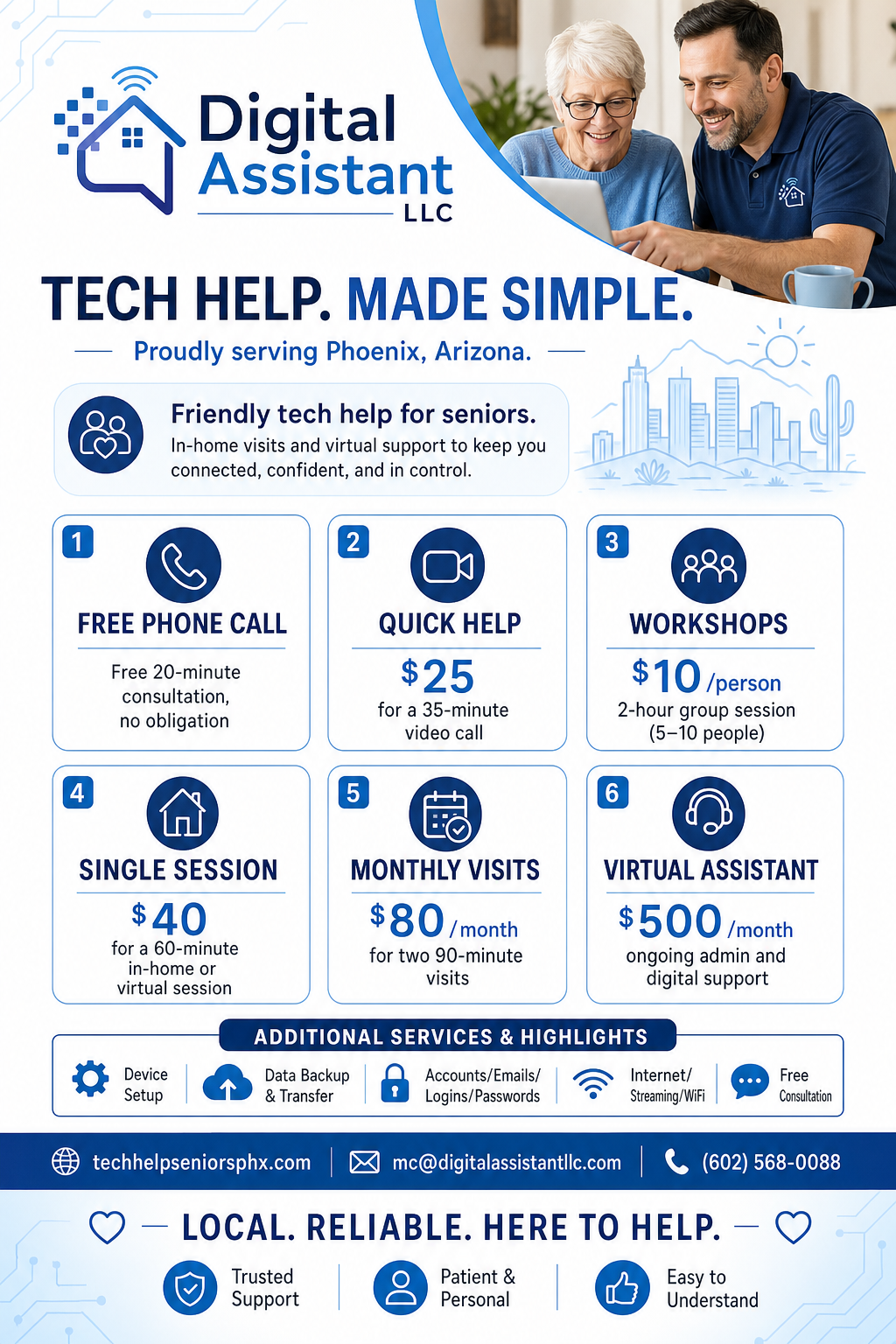
Configuring a smart TV for seniors involves technical steps that are often easier to manage with professional guidance. Digital Assistant provides in-home visits and virtual support to residents in Phoenix neighborhoods like Sun City, Arcadia, and North Scottsdale. We handle the entire unboxing and simplification process, stripping away confusing advertisements and fine-tuning accessibility settings for you.
Our approach focuses on long term confidence. We provide patient and personal tech help by sitting with you to practice the remote functions until they become second nature. We do not just leave once the picture is clear; we stay to ensure you can independently find your favorite movies and use voice search commands without hesitation. This personalized practice ensures that your new television remains a source of entertainment rather than a source of stress.
Streaming should be a source of relaxation, not a technical puzzle. By simplifying the interface and focusing on the essentials, any senior can enjoy the vast world of digital entertainment with confidence. If you find the setup process overwhelming or simply want expert help to ensure every connection is secure, we are here to assist. You can explore our Services to find the right support for your home. Let us handle the technical details so you can sit back and enjoy your favorite programs without any further worry.