An Apple device guide for seniors provides step by step instructions to help older adults master essential features on the iPhone, iPad, and Apple Watch. This resource covers everything from basic communication and iCloud storage to vital health monitoring tools like fall detection and emergency notifications.
As your digital assistant, I understand that navigating a new iPhone or iPad can feel like learning a foreign language. Many seniors feel overwhelmed by complex menus or worry about accidentally changing critical settings, which often leads to avoiding these powerful tools altogether. Bridging this gap is vital because technology should simplify your life and enhance your safety, rather than creating frustration. In this comprehensive guide, we will explore the essential functions of the Apple ecosystem, from health monitoring on the Apple Watch to the simplified interface of Assistive Access. You will learn how to secure your data with iCloud, customize your display for maximum visibility, and stay connected with loved ones through FaceTime. Our goal is to transform your devices into intuitive extensions of your daily routine, ensuring you remain confident, secure, and fully informed.
The Apple Ecosystem: How Your Devices Work Together
The Apple ecosystem is a collection of hardware and software designed to work as a unified team. While an iPhone, iPad, or Apple Watch is a powerful tool on its own, their true value is revealed when they communicate with each other. This integration ensures that your information stays consistent across every screen you own, creating a seamless experience as you move through your day.
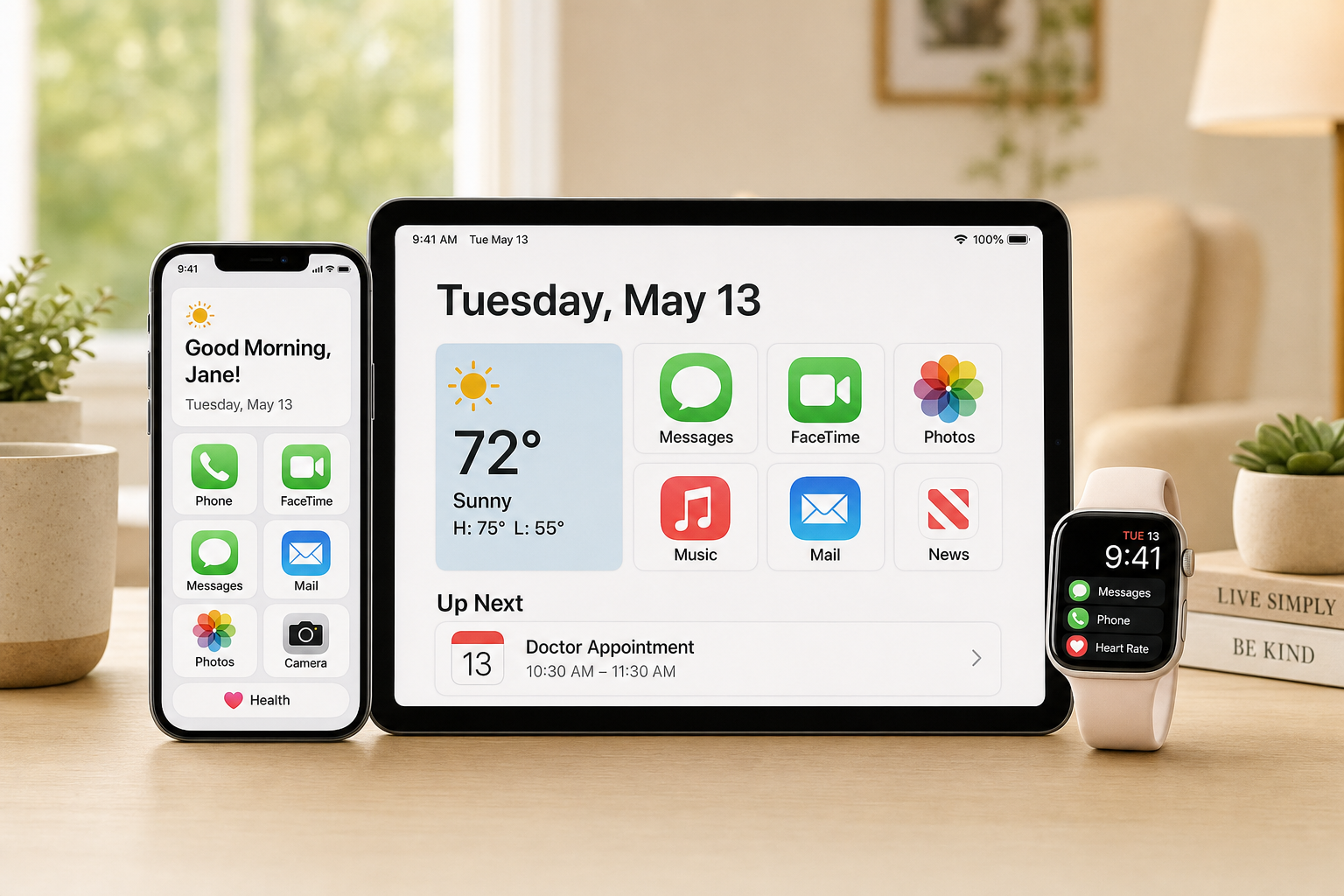
For seniors living in the Valley, this connectivity offers significant practical benefits. If you take a photo of a blooming cactus at the Desert Botanical Garden using your iPhone, that image automatically syncs to your iPad, as long as they are logged in with the same Apple ID. By the time you return home, you can view that same photo on a larger screen without ever needing to use a cable or manual transfer. Beyond photos, your calendar appointments, text messages, and reminders stay updated across all devices simultaneously via iCloud.
Navigating this Apple device guide for seniors requires a basic understanding of how these connections function. The initial learning curve can feel steep, particularly when managing settings or account permissions. Digital Assistant in Phoenix provides the patient, local support necessary to master these tools. We offer personalized assistance with devices to help you feel confident and secure in your digital life. If you find yourself overwhelmed by the technical details, you can always contact our team for expert help bridging the gap.
iPhone and iPad Essentials: Navigating Your Mobile Devices
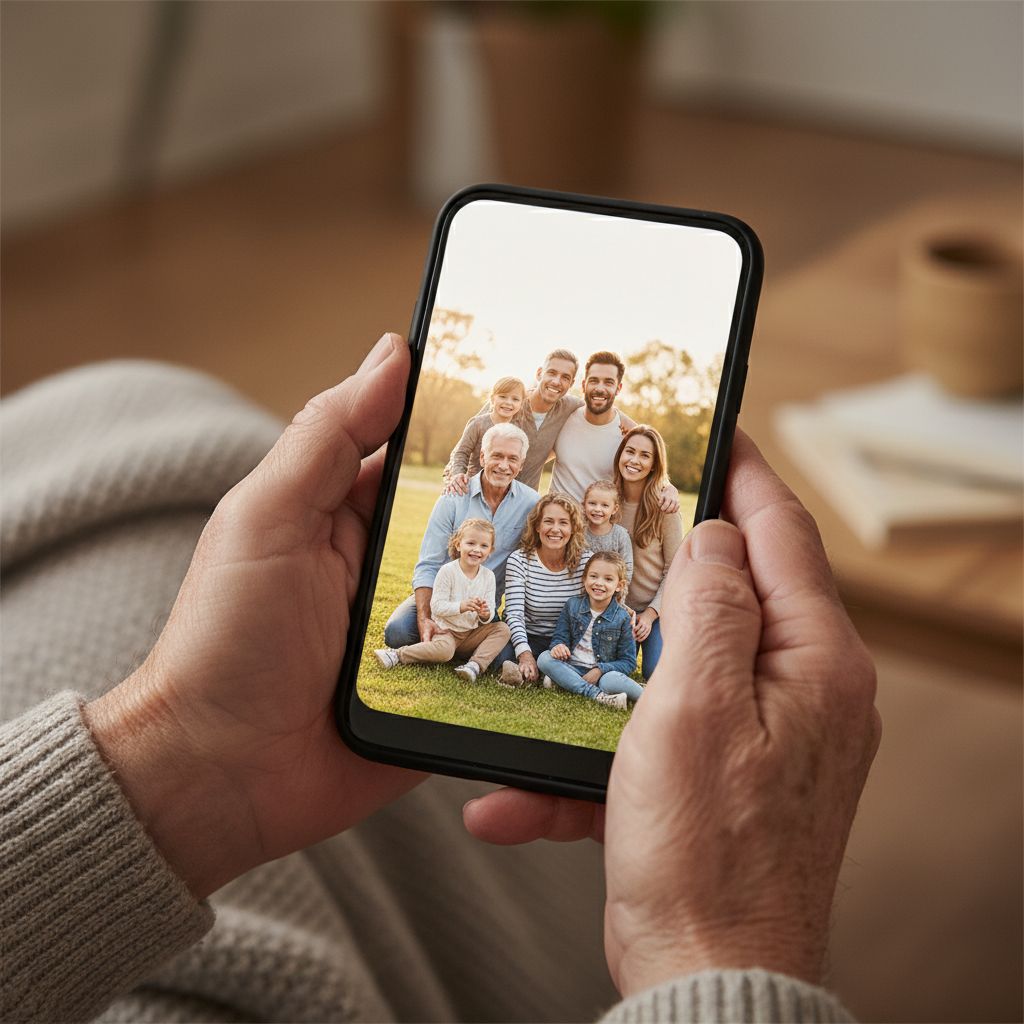
Understanding the physical differences between an iPhone and an iPad is a fundamental step in this Apple device guide for seniors. While both run on nearly identical software, the iPhone is designed for portability during your daily errands in Phoenix, while the iPad offers a larger canvas for reading the news or viewing family photos at home. Both devices rely on a series of intuitive gestures that, once mastered, make navigation feel second nature.
Basic interactions revolve around three primary movements. A single tap selects an item or opens an app. Swiping involves sliding your finger across the glass to scroll through a list or flip between pages of apps. A long press, where you hold your finger on an icon for a second, often reveals a hidden menu of extra options. If you ever feel lost within an app, you can return to your main Home screen by swiping upward from the bottom edge of the screen or pressing the circular Home button on older models.
Managing your device starts with the Side button. Press it once to lock the screen and save battery; press it again to wake the device. To unlock, you typically swipe up from the bottom or use biometric features like Face ID. For quick adjustments, the Control Center is an essential tool. By swiping down from the top right corner of the screen, you can immediately access sliders for screen brightness and volume without digging through the main settings menu.
While these standard gestures are efficient, some users find the modern interface a bit cluttered. If the standard layout feels overwhelming, Apple offers specialized settings that function like an easy mode to simplify the experience. This transition into streamlined navigation is part of what we cover during personalized assistance with devices. Our team at Digital Assistant in Phoenix can help you configure these basics so your technology works for you, not against you. If you need a hand setting up your gestures or customizing your Home screen, feel free to contact our team.
Does Apple Have an Easy Mode? Understanding Assistive Access
Many users ask if Apple offers a simplified easy mode for those who find standard menus complex. While there isn't a single button labeled easy mode, Apple recently introduced a powerful feature called Assistive Access. This setting is specifically designed for individuals who benefit from a more focused and visually clear interface. It is a cornerstone of any comprehensive Apple device guide for seniors who want to eliminate digital clutter.
Learn more on Apple's official page: Assistive Access for iPhone and iPad
Assistive Access replaces the traditional home screen with large, high-contrast buttons and bold text. You can choose to display only the most essential applications, such as Calls, Camera, Photos, and Messages. By removing extraneous features, notifications, and gestures, it minimizes the risk of getting lost in sub-menus. For instance, the Camera app in this mode features a single, prominent capture button, removing the distraction of various filters or complex settings.
Setting up this mode requires a dedicated passcode to ensure the user stays within the simplified environment. Because this involves selecting specific contacts and app permissions, Digital Assistant in Phoenix often helps clients configure these settings to match their unique needs. Providing personalized assistance with devices ensures that the transition to this interface is smooth and frustration free. If you find the standard Apple layout intimidating, contact our team to see if this streamlined setup is right for you.
Apple Watch for Seniors: Safety, Health, and Fall Detection

While the iPhone and iPad are excellent for active communication, the Apple Watch serves as a proactive health monitor that stays on your wrist throughout the day. This wearable tracker is particularly valuable for its safety features, which operate silently in the background. Fall Detection is a standout tool; if the watch detects a hard impact while you are moving, it will vibrate and sound an alarm. If you remain motionless for approximately one minute, it automatically contacts emergency services and sends your location to your designated emergency contacts.
You can read more on Apple's site: Use Fall Detection with Apple Watch
For those concerned about cardiovascular health, the watch provides continuous heart rate monitoring. It can alert you to unusually high or low heart rates and even detect irregular rhythms. When it comes to choosing a model, the Apple Watch SE is often the best starting point for many seniors because it includes essential safety features like Fall Detection and Emergency SOS at a more accessible price point. The Series 9 or Series 10 is recommended for those who want advanced health data, such as the ECG app or blood oxygen monitoring, which are not available on the SE model.
For more detail, visit Apple's heart health resources: Monitor Your Heart Rate with Apple Watch
Integrating these features into an Apple device guide for seniors requires careful setup of the Health app and Medical ID. Digital Assistant in Phoenix can assist in configuring these alerts so that family members have peace of mind knowing help is just a tap away. We provide personalized assistance with devices to ensure your watch is tuned to your specific health needs and daily routine. If you need help choosing a model or setting up emergency contacts, you can contact our team to schedule a home visit.
Understanding Apple ID and iCloud

While hardware safety features are vital, the backbone of this Apple device guide for seniors is the account system that holds everything together. Many users find the distinction between Apple ID and iCloud confusing. Let's clear it up with a simple way to remember the difference.
Here is what each one does in plain everyday terms.
Your Apple Account handles: - Signing into your iPhone, iPad, or Mac - Downloading apps from the App Store - Sending iMessages and making FaceTime calls - Accessing Apple Music, Apple TV, and more
iCloud handles: - Backing up your photos automatically - Keeping your contacts, calendars, and notes in sync between devices - Storing files so you can access them from anywhere - Giving you an iCloud.com email address if you want one
The first 5 GB of iCloud storage is free. If you take a lot of photos or videos and run out of space, you can upgrade for a small monthly fee of just 99 cents for 50 GB.
For the latest iCloud features and pricing, see Apple's page: iCloud
Is an Apple ID necessary? Yes, it is the primary way Apple verifies you are the owner of your device. Without it, you cannot download new apps or sync information between your iPhone and iPad. iCloud is equally essential for backing up your data. If you accidentally lose your device while out in the Valley, having an iCloud backup ensures that your messages and precious family photos are not lost forever.
Service | Purpose | Cost |
|---|---|---|
Apple ID | Account Identity and Sign-in | Free |
iCloud (Basic) | 5GB of cloud storage and backups | Free |
iCloud+ | Expanded storage (50GB, 200GB, or 2TB) | Monthly Fee |
The primary downside to iCloud involves the recurring monthly fee if you exceed the modest 5GB of free storage. Additionally, because this account contains your most private information, it requires a strong, complex password, which can be a hurdle to manage. However, the benefit of automatic syncing and data recovery far outweighs these minor inconveniences. Digital Assistant in Phoenix helps clients navigate these account settings to ensure their data is secure and their storage plans are optimized. We provide personalized assistance with devices to help you choose the right plan and manage your digital keys safely. If you are struggling to remember your login details or keep getting "Storage Full" alerts, contact our team for expert support.
Customizing for Comfort: Accessibility Settings for Better Visibility
Once your accounts are secure, adjusting how you interact with the screen ensures your technology remains a utility rather than a source of frustration. Apple includes a robust suite of accessibility tools that can be tailored to specific visual or physical needs. To improve visibility, navigate to Settings, then Accessibility, and select Display and Text Size. Here, you can toggle on Bold Text and use the Larger Text slider to increase the font across your entire device. This makes reading messages or navigating the web significantly easier on the eyes.
For reading fine print on physical objects, the Magnifier tool is essential. It uses your camera as a high powered digital magnifying glass for menus or medication labels. If reading long articles feels taxing, go to Spoken Content and turn on Speak Screen. By swiping down from the top of the screen with two fingers, your device will read the visible text aloud to you.
Explore more options on Apple's site: Apple Accessibility Features
Feature | Where to Find It | Practical Benefit |
|---|---|---|
Larger Text | Settings > Accessibility > Display | Increases font size globally for legibility |
Magnifier | Settings > Accessibility > Magnifier | Turns camera into a zoom lens for print |
Speak Screen | Settings > Accessibility > Spoken Content | Reads text aloud to reduce eye strain |
Touch Accommodations | Settings > Accessibility > Touch | Adjusts sensitivity for steadier tapping |
Physical ease of use is further improved by enabling Touch Accommodations. This allows you to adjust the Hold Duration, which prevents accidental commands if your hands are less steady due to arthritis or tremors. This Apple device guide for seniors provides a roadmap, but Digital Assistant in Phoenix offers personalized assistance with devices to fine tune these specific toggles. If these menus feel complex, contact our team to help optimize your hardware for your specific comfort requirements.
Staying Connected: Using FaceTime and Shared Photo Albums
Optimizing your settings for comfort makes it much easier to use your device for its most rewarding purpose: staying close to family. FaceTime is the gold standard for video calls, allowing you to see your grandchildren in high definition rather than just hearing a voice on the phone. To start a call, open the green FaceTime app, tap New FaceTime, and select a contact. This visual connection helps bridge the distance, making a conversation feel like a real visit.
See Apple's guide: Use FaceTime on iPhone
Shared Photo Albums offer another way to participate in family life without needing to navigate social media. When a family member adds you to an album, you will receive a notification; once you accept, every new photo of a birthday or a soccer game appears automatically in your Photos app. This digital scrapbook ensures you never miss a moment. At Digital Assistant in Phoenix, our mission is to use this Apple device guide for seniors to help reduce social isolation. We provide personalized assistance with devices to set up these accounts and walk you through the apps step by step. If you want to start sharing photos today, contact our team for a one on one session.
Personalized Technology Help for Phoenix Seniors
While these tips provide a strong foundation, reading a manual often lacks the nuance of a face to face conversation. This Apple device guide for seniors serves as a roadmap, yet the most effective way to master a new iPad or Apple Watch is through direct, hands on instruction. Digital Assistant in Phoenix bridges this gap by offering in home support tailored to your specific pace and comfort level. We travel to neighborhoods across the Valley, including Scottsdale and Sun City, to ensure your technology is configured correctly from the very first day.
By receiving personalized assistance with devices, you avoid the frustration of troubleshooting alone. An expert can help you organize your apps, secure your iCloud account, and verify that your health tracking features are fully active. If you want to skip the trial and error and start enjoying your devices immediately, you can contact our team to schedule a visit. Expert help is available right in your own living room.