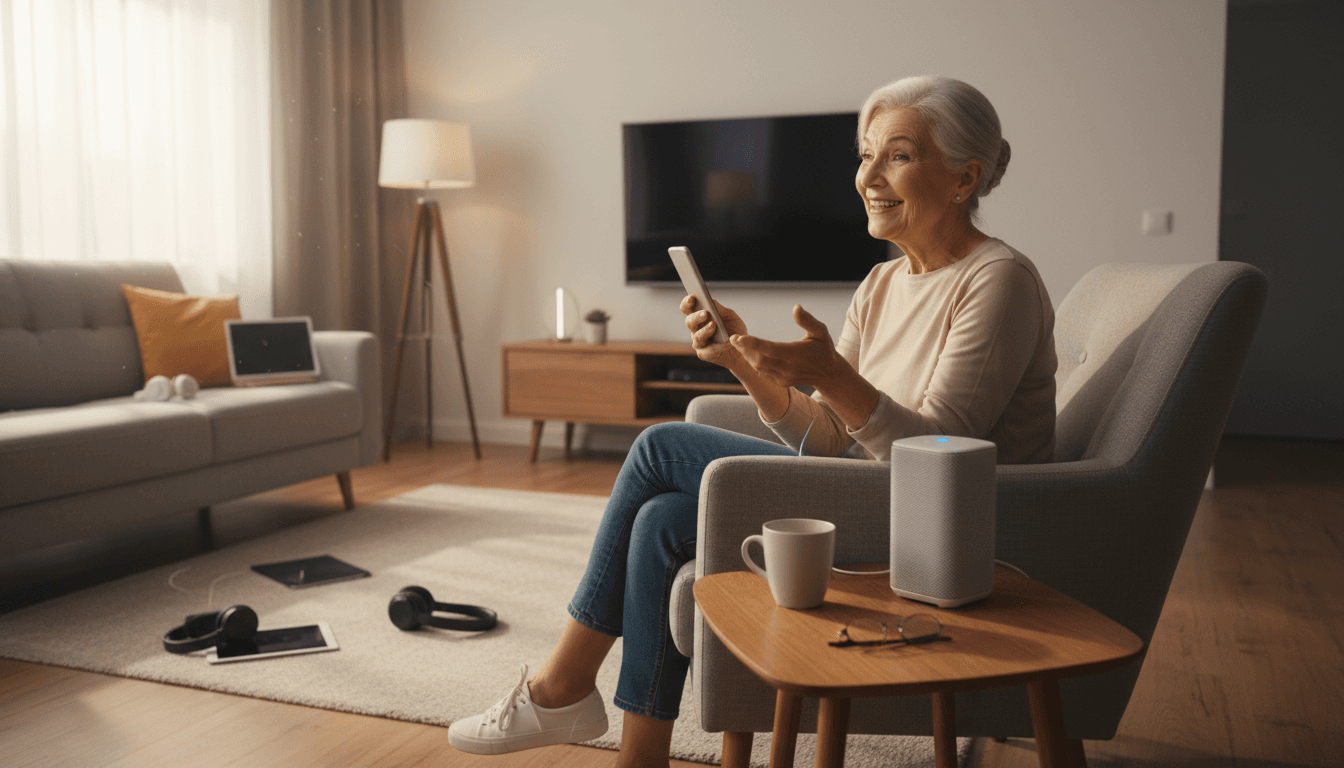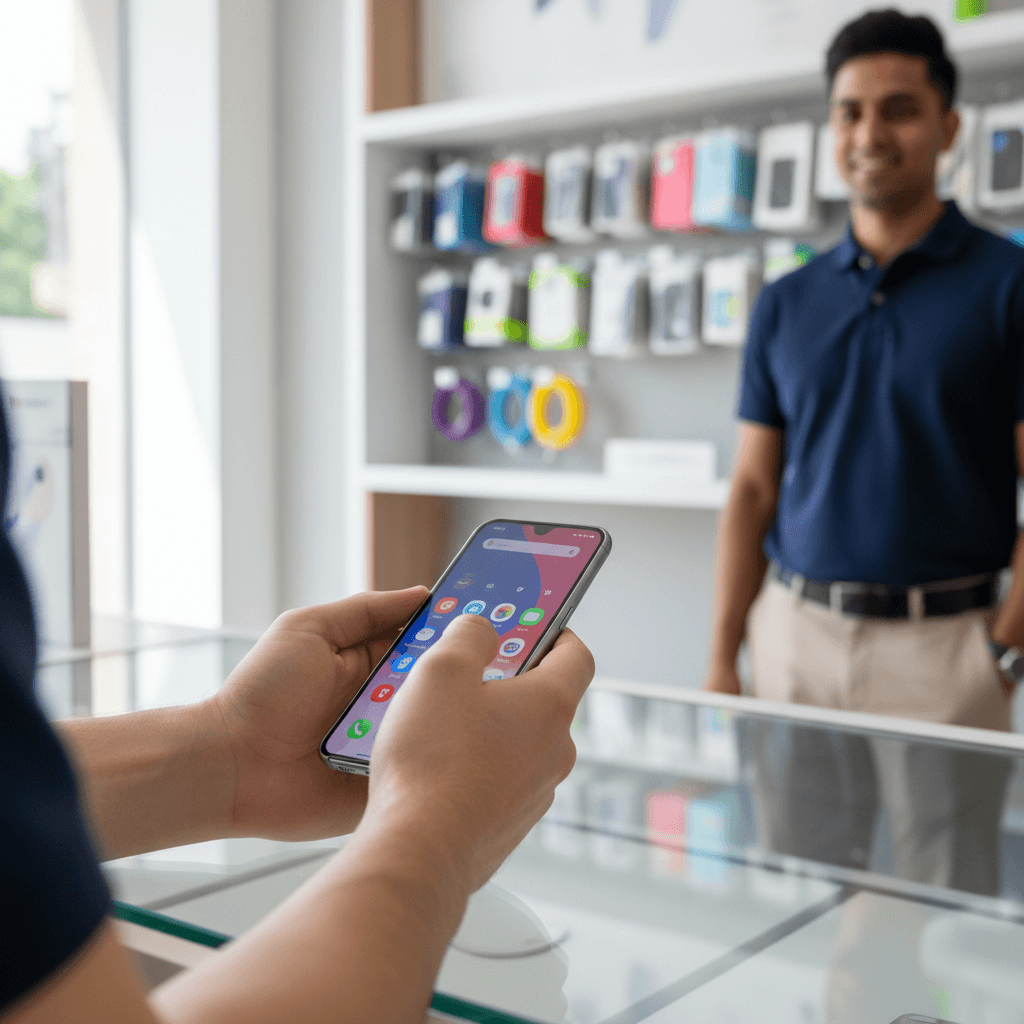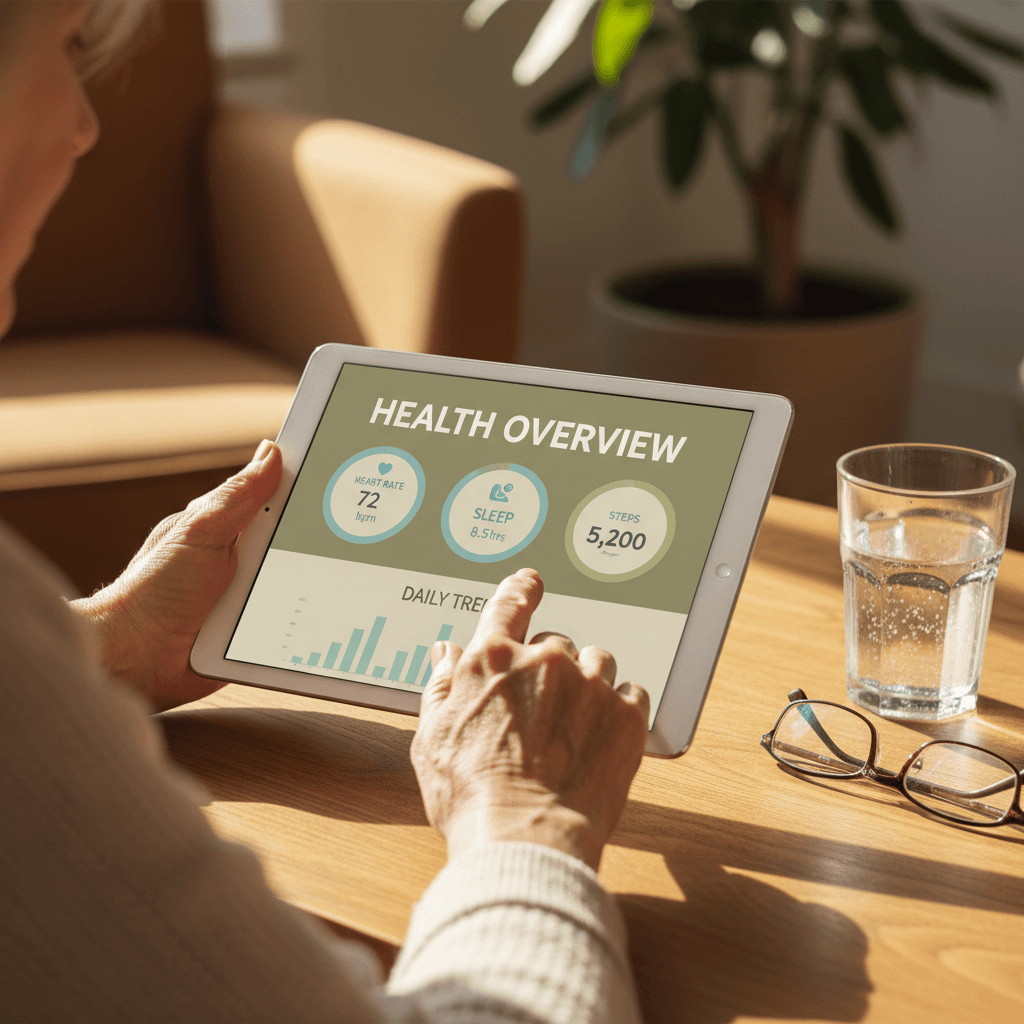
To set up new iPhone for seniors, begin by using Quick Start or iCloud to transfer data, then prioritize accessibility features like Display Zoom and larger text sizes for better visibility. You should also adjust ringer volume and enable LED flashes for alerts to ensure the senior user can easily interact with their new device.
Unboxing a new iPhone should be a moment of excitement, yet for many seniors, the initial setup process feels like a daunting technical barrier. Small font sizes and complex security prompts often turn a powerful communication tool into a source of unnecessary stress. This transition matters because a correctly configured iPhone ensures seamless connection with loved ones and provides immediate access to life saving safety features. In this guide, we will provide a clear, expert path through the entire setup sequence. You will learn how to use Quick Start for effortless data transfer, how to optimize accessibility settings for better visibility, and how to establish critical emergency protocols. We also cover the essential final steps for managing your old hardware, ensuring your new device is perfectly tailored to your needs from the very first day.
Preparation: What You Need Before Turning on Your New iPhone
Setting up a new phone can feel overwhelming, but proper preparation is the secret to a smooth experience. At Digital Assistant, we recommend starting by creating a dedicated physical workspace. Choose a well lit table, perhaps your kitchen table or a desk. This environment helps reduce anxiety and ensures you have plenty of room to handle both devices without clutter.
Before you press the power button, gather these essential items to ensure you can set up new iPhone for seniors without interruption:
Your Apple ID and Password: This is the primary account used for all Apple services. If you do not have it written down, try to locate it or reset it before you begin. Verify your Apple ID login info by going to iCloud.com. If you forgot your Apple ID password, reset it here https://iforgot.apple.com/.
Wi-Fi Password: Your new phone requires a stable internet connection to download your existing apps, contacts, and photos.
Your Old Device: Keep your current phone nearby; it is the most important tool for a seamless data transfer.
Power Supply: Verify that both the old and new devices are charged to at least 50 percent. For the best results, keep both phones plugged into their chargers during the entire process.
You will also need your cellular account details. Many Phoenix residents use local providers like Cox Mobile or national carriers like Verizon and AT&T. Ensure you know if your current phone uses a physical SIM card or an eSIM, as you may need to authorize a digital transfer during the activation steps. Having these items ready allows you to focus on the screen instructions without searching for misplaced papers. If you prefer a helping hand, we provide personalized tech assistance to walk you through the process in person.
The Magic of Quick Start: Transferring Data Between Devices
Once your workspace is ready and both phones are powered on, you can begin the most efficient part of the process: Quick Start. This feature is the most intuitive way to set up new iPhone for seniors because it automates the heavy lifting of moving your digital life from one device to another. It effectively mirrors your old phone onto the new hardware without requiring you to navigate complex menus.
Start by placing your new iPhone immediately next to your old one. Ensure Bluetooth is enabled on your current device. Within a few seconds, a prompt will appear on your old phone's screen asking if you want to use your Apple ID to prepare the new device. Tap the 'Continue' button to proceed. If you do not see this prompt, try locking and unlocking your old phone once while keeping it close to the new one.
Next, look at the screen of your new iPhone. You will see a swirling, circular animation that looks like a mesmerizing cloud of blue dots. Your old phone will open its camera automatically with a circular window displayed on the screen. Pick up your old phone and hold it over the new one, centering that cloud of dots within the circle. This action creates a secure, encrypted connection between the two devices.
Follow the prompts to enter your old passcode on the new device. When asked, choose the 'Transfer from iPhone' option. This process moves your contacts, your entire library of family photos, and your specific settings, such as your wallpaper and saved Wi-Fi networks.
A common concern we address during our personalized tech assistance sessions is whether the old phone will be erased during this transfer. It is important to know that Quick Start only copies your information. Your old phone will remain exactly as it is, with all your messages and photos intact, until you choose to erase it later. This gives you the peace of mind to verify that everything has moved over correctly before you retire the old device.
Setting Up Face ID or Touch ID for Easy Access
After your data finishes transferring, the phone will ask you to secure the device. While it might seem intimidating, biometric security is one of the most helpful features when you set up new iPhone for seniors. It replaces the need to remember and manually type a complex passcode every time you want to check a message. Instead, the phone uses your unique physical traits to unlock the screen instantly.
If your model uses Face ID, the screen will guide you to position your face within an onscreen frame. You will move your head slowly in a circle to allow the sensors to map your features. For individuals who experience tremors or find it difficult to hold the device steady, we recommend resting your elbows on the table you prepared earlier to keep the phone stable at eye level. This ensures the camera gets a clear, unobstructed view of your face.
For models with a Home button, you will use Touch ID to scan your fingerprint. If you have very dry skin, which is common in our arid Phoenix climate, the sensor may occasionally struggle to read your print. Lightly moisturizing your hands before beginning the setup can significantly improve the sensor's accuracy.
Once active, this technology does more than just unlock your phone. It allows you to sign into banking apps or authorize App Store purchases without ever typing a password. If the setup feels finicky or the phone isn't recognizing your scan, you can always contact us for help or request personalized tech assistance to get it calibrated perfectly.
Customizing Accessibility: Making the iPhone Easier to See and Hear
Once your security is in place, the next step is to tailor the screen to your specific visual and auditory needs. Modern iPhones offer incredibly high resolution, but for many, the factory default settings are simply too small to read comfortably. When we help clients set up new iPhone for seniors, we prioritize these four adjustments to ensure the device is functional rather than frustrating.
First, address the legibility of the text. Navigate to Settings, tap Accessibility, and select Display & Text Size. Within this menu, tap Larger Text and toggle the switch for Larger Accessibility Sizes. You can then use the slider at the bottom of the screen to find a font size that feels right for you. While in this same menu, we highly recommend toggling on Bold Text. This adds weight to every letter on the screen, which is particularly helpful when using your phone outdoors in the bright Arizona sun. The high contrast of bolded characters helps cut through the intense desert glare that often makes standard screens difficult to see.
Next, make the app icons easier to select by enabling Display Zoom. Go to Settings, tap Display & Brightness, and scroll down to the very bottom to find Display Zoom. Tap View and select Larger Text. This adjustment slightly increases the size of everything on the screen, from the message bubbles to the icons on your home screen, making it much easier to navigate with a simple tap.
Finally, ensure you never miss a call by adjusting the Ringer and Alerts. Go to Settings and then Sounds & Haptics. Use the slider to set a volume that is audible from across the room. If you find the physical buttons on the side of the phone accidentally change your ringer volume when you grip the device, toggle off Change with Buttons to lock your volume in place. Digital Assistant specializes in these subtle tweaks to make technology work for your lifestyle. If these menus feel buried or complex, our personalized tech assistance can handle the configuration for you to ensure your phone is perfectly calibrated for your vision and hearing needs.
Safety First: Setting Up Medical ID and Emergency SOS

Beyond visibility, your phone serves as a critical safety tool that can provide peace of mind for you and your family. When you set up new iPhone for seniors, prioritizing the Medical ID and Emergency SOS features is essential. These tools are designed to be accessible by first responders even if your phone is locked with a passcode.
Begin by opening the Health app, which features a white icon with a small red heart. Tap your profile picture in the top right corner, select Medical ID, and tap Edit. Fill in pertinent details such as your birth date, medications, and any known allergies. Most importantly, scroll down to add your emergency contacts. If an emergency occurs, the iPhone will automatically send a message to these individuals with your current location.
Next, go to Settings and tap Emergency SOS. Enable the feature called Call with Hold and Release. This allows you to contact emergency services by firmly holding the side button and one of the volume buttons at the same time. After a brief countdown and alert, the phone places the call when you let go. This physical shortcut is often easier to use than navigating a touch screen during a stressful situation. If you need help navigating these menus to ensure your safety profile is complete, we offer personalized tech assistance to walk you through every step.
What to Do With Your Old iPhone After the Transfer
After your medical information and emergency settings are secure, your attention will likely turn to the old device sitting on your table. Before you do anything else, confirm that your text threads, photos, and contacts appear on the new device exactly as they did before. When you set up new iPhone for seniors, the primary goal is a seamless transition, so verifying your data is safe is the most important step.
Once you are confident everything moved over, there are two important housekeeping steps that many people forget. First, remove the old device from your iCloud account, which keeps it tied to your Apple ID only if you plan to keep using it. Second, deauthorize the device so it no longer counts toward your Apple ID limits or shares your account. Open Settings, tap your name at the top, select the old device, and choose Remove from Account. This is a simple but important safety step before the phone leaves your hands.
Finally, perform a factory reset to protect your privacy. Open Settings, tap General, scroll to the bottom for Transfer or Reset iPhone, and choose Erase All Content and Settings. This wipes your personal logins and private data completely.
What Can You Do With Your Old iPhone?
Once the phone is wiped clean, you have three good options instead of leaving it in a drawer. Choose whichever fits your plans best.
Trade it in for credit. Apple and many carriers will give you a credit toward your next purchase when you trade in a working device. Using Apple's Trade In program while shopping for a new phone is one of the easiest ways to reduce the upfront cost.
Donate it. Organizations that support survivors of domestic violence welcome working phones. You can donate a phone to the National Coalition Against Domestic Violence (NCADV) at ncadv.org/donate-a-phone, which partners with a recycling company to turn donated phones into support for survivors across the country. Always wipe the phone completely before donating.
Use it as an iPod. An old iPhone still works beautifully as a music and podcast player, even without a cellular plan. Connect it to Wi-Fi, download your favorite audio, and enjoy it as a dedicated listening device around the house.
Our personalized tech assistance can help you wipe the phone safely and set it up for whichever path you choose, so your private information stays secure no matter where the device goes next.
Next Steps: Learning to Use Your New Device
Now that your data is secure and your old device is cleared, take time to explore your new interface. You cannot break the phone by tapping icons, so feel free to browse and familiarize yourself with the home screen. If the standard layout feels cluttered or difficult to navigate, you might prefer a simplified view. You can learn How to Set Up Assistive Access on iPhone to streamline your experience further.
When we help clients set up new iPhone for seniors, we suggest trying two tasks to build immediate confidence. First, open the Messages app and send a photo to a family member. Second, hold the side button and ask, 'Siri, what is the weather today in Phoenix?' This provides instant information without the need for typing. If you need more guidance as you learn the system, feel free to contact us for help or request personalized tech assistance to master your device.
Bonus: How to Set Up an iPhone for a Child
Sometimes a family member passes an older iPhone down to a grandchild. Setting it up for a child is a little different because you want more limits and safeguards in place. Apple offers tools designed just for this.
Create an Apple ID for the child. A child under 13 needs a parent to set up the account. You can do this through Family Sharing so you stay in control.
Set up Family Sharing. In Settings, tap your name, then Family Sharing, and add the child. This lets you approve purchases and see their activity.
Turn on Screen Time limits. Under Screen Time in Settings, you can set daily time limits, block certain apps, and schedule downtime such as bedtime.
Restrict content. Use Content & Privacy Restrictions to block mature content, limit web browsing, and prevent changes to settings.
Enable Find My. Turning on Find My iPhone lets you see the child's location and helps locate a lost phone.
If you would like a helping hand configuring these safeguards, ask about our personalized tech assistance and we can set everything up together.
Setting up a new iPhone for a senior ensures they stay connected with family through clear settings and simplified navigation. Whether you trade in, donate, or repurpose your old device, taking the time to wipe it clean and remove it from your iCloud keeps your information safe. While these steps provide a solid foundation for getting started, modern technology can still feel overwhelming or time-consuming. If you want expert help with a personalized device setup or ongoing technical guidance, our dedicated team is here to assist. You can explore our available services to find the right support for your family. We are here to make technology accessible and stress-free.