To make text bigger on phone seniors should navigate to the Accessibility or Display section in their device settings and adjust the font size slider. iPhone users can find this under Display and Brightness, while Android users should look for Font Size and Style within the Display menu. These simple steps ensure that all on-screen content is more legible and easier to navigate for those with vision impairment.
Struggling to read a text message or squinting at a news article should not be a daily frustration. When font sizes are too small, using a smartphone feels less like a convenience and more like a chore; this often leads to avoidable eye strain and digital fatigue. Improving your screen visibility is not just about comfort, it is a vital step toward maintaining your independence and staying connected with loved ones. This guide provides clear, expert instructions on how to adjust text settings across various devices. You will learn specific methods for iPhone and Android hardware, techniques for Samsung Galaxy models, and ways to customize individual apps like Facebook or your email. We also highlight professional tech support resources available for seniors in Phoenix to ensure your mobile experience is as clear and accessible as possible.
Why Adjusting Your Phone Text Size Is a Game Changer
Modern smartphones arrive at your doorstep with factory settings optimized for high-resolution screens and, unfortunately, tiny default font sizes. For many people, these factory settings make reading a text message or checking a calendar entry feel like a chore. At Digital Assistant, we provide personalized assistance with devices throughout the Phoenix area, and we have found that adjusting font visibility is the number one request during our home visits. This is more than a vision concern; it is a fundamental usability issue. If you cannot comfortably read your screen, you cannot fully use your phone.
When clients ask to make text bigger on phone seniors often find that size is only one part of the solution. Increasing the font size helps, but sometimes the real barrier is thin lettering or poor color contrast against a bright background. True accessibility often requires a combination of larger scales, Bold Text, and high-contrast settings to ensure characters stand out clearly. This is particularly important when viewing your device in the bright Arizona sun. This guide will walk you through these adjustments for both iPhone and Android devices, ensuring your technology works for you without the eye strain. If you find these menus confusing, you can always contact Digital Assistant for one-on-one help in the comfort of your home.
How to Make Text Bigger on iPhone and iPad

Adjusting visibility on an Apple device involves two different layers of settings. Most users start with the standard adjustment, which provides a moderate increase. To find this, open the Settings app, scroll down and tap Display & Brightness, then select Text Size. You will see a slider at the bottom of the screen. Dragging the circle to the right increases the font size across most built-in apps like Mail, Messages, and Notes.
While the standard slider is a helpful first step, it often does not go far enough for many who need to make text bigger on phone seniors often find the maximum standard size still feels cramped. This is where the Accessibility menu becomes essential. Apple includes a specific toggle here that allows for much larger, jumbo fonts that are not available in the standard menu. To access this advanced feature, follow these steps:
Open Settings on your iPhone or iPad.
Scroll down and tap Accessibility.
Tap Display & Text Size.
Tap Larger Text.
Switch the toggle for Larger Accessibility Sizes to the green On position.
Once this toggle is active, the slider at the bottom of your screen expands, offering significantly larger options that can fill the screen with just a few sentences at a time. This is the best way to ensure readability without straining your eyes.
Directly below the Text Size settings, you will also find a toggle for Bold Text. Our team recommends turning this on for almost all our clients. Bold text adds weight to every letter, making the characters stand out more prominently. This is particularly effective when you are using your phone outdoors; the extra thickness helps prevent the letters from washing out in the intense Arizona sunlight. If you need more guidance on optimizing your device, our guide on 5 Simple iPhone Tips for Seniors offers additional advice, or you can contact Digital Assistant for a personalized walk-through.
Using the iPhone Control Center for Quick Adjustments
While permanent adjustments are helpful, you may not always want the same font size for every single app. The iPhone Control Center offers a faster way to manage visibility without reopening your settings. This feature is a primary tool we recommend when providing personalized assistance with devices across Phoenix, as it allows for immediate, temporary changes.
To enable this shortcut, open Settings, tap Control Center, and scroll down to find Text Size (the AA icon). Tap the green plus button to add it to your active shortcuts. Once added, swipe down from the top right corner of your screen to open the Control Center and tap the AA icon. A large vertical slider will appear. At the bottom of this screen, you can choose to apply the change to All Apps or only the specific app you are currently using. This flexibility is perfect to make text bigger on phone seniors often use for reading news or text messages while keeping the rest of the phone layout compact. If these steps feel complex, contact Digital Assistant for a one on one demonstration.
How to Make Text Bigger on Android Phones
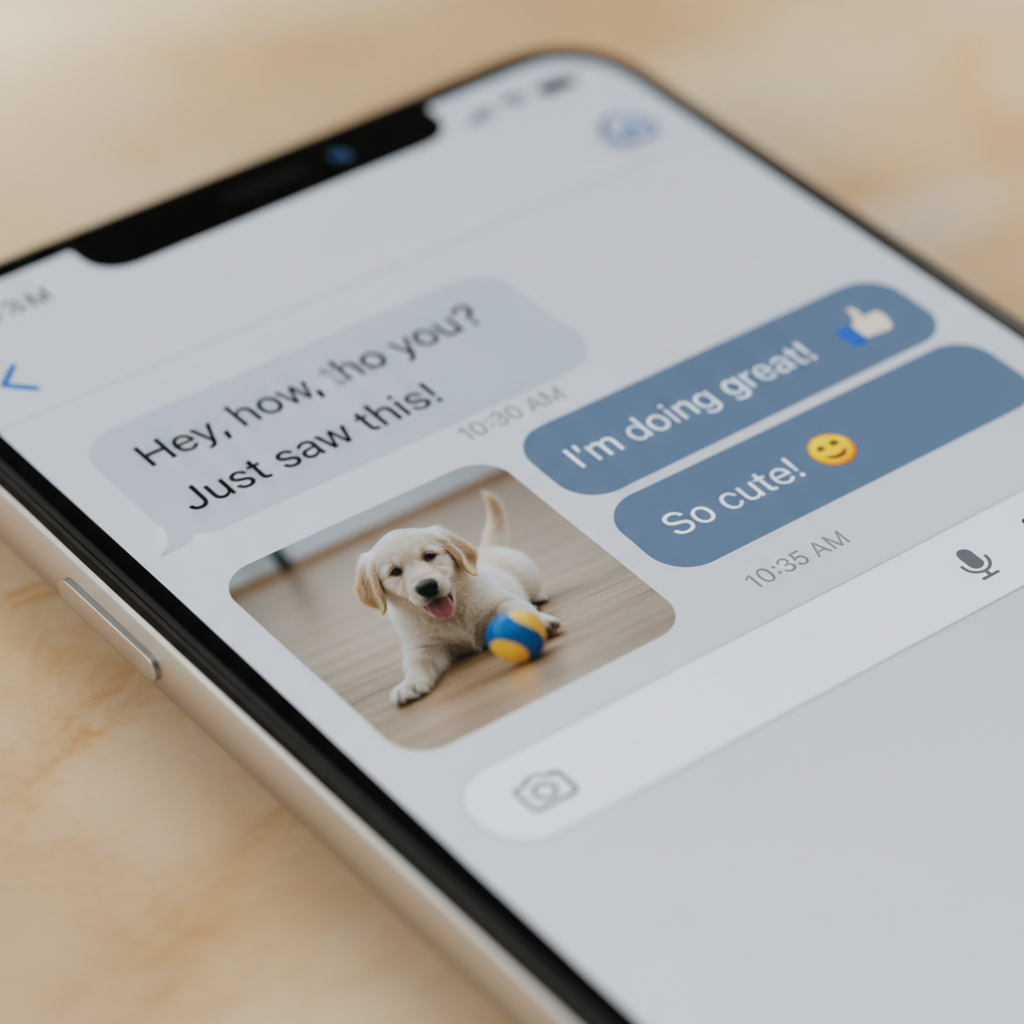
Android devices offer excellent customization options, but because many manufacturers use the Android system, the menus can look slightly different depending on if you own a Google Pixel, a Motorola, or another brand. Generally, you can begin by opening your Settings app and selecting Display. Look for an option labeled Font size and style or Display size and text. This is the primary hub to make text bigger on phone seniors often find most helpful for daily reading.
When you reach these settings, you will likely see two distinct sliders. The first is Font Size, which specifically targets the scale of the letters in your menus and messages. The second is Display Size, which changes the scale of everything else, including app icons, menu buttons, and the overall spacing of the screen. While it is tempting to slide the font setting to the maximum right away, doing so can sometimes cause text to overlap or cut off. Our team at Digital Assistant recommends increasing both sliders just one or two notches at a time. This balanced approach keeps the screen layout organized while making the interface significantly easier to navigate.
Many Android versions also include a Bold font toggle within this same menu. Turning this on adds weight to the characters and provides better definition against the background. If navigating these sub-menus feels frustrating, our team offers personalized assistance with devices to ensure your phone is set up correctly the first time. We are happy to visit your home in the Phoenix area to walk you through these steps; simply contact Digital Assistant to schedule a session with a local expert.
Specific Steps for Samsung Galaxy Users
Samsung Galaxy smartphones are a favorite choice among our Phoenix clients, but they feature a unique interface that places certain visibility tools in specific locations. To adjust your primary settings, open the Settings app, tap Display, and then select Font size and style. Here, you can adjust a slider to increase the text scale and toggle Bold font to make characters thicker.
For those specifically looking to make text bigger on phone for seniors samsung devices offer a hidden gem called High contrast fonts. If you find that letters blend into the background, especially on light-colored screens or apps, this feature provides the necessary separation. It adds a sharp outline to every character, ensuring the text stands out clearly against any image or wallpaper. You can find this by going to Settings, selecting Accessibility, and tapping Visibility enhancements.
Feature | Location in Settings | Benefit |
|---|---|---|
Font Size Slider | Display > Font size and style | Increases the physical scale of letters |
Bold Font | Display > Font size and style | Adds weight to characters for better definition |
High Contrast Fonts | Accessibility > Visibility enhancements | Adds an outline to make text pop against backgrounds |
Navigating these nested menus can be tedious if you are unfamiliar with Samsung's specific layout. If you need help finding these enhancements, our team provides personalized assistance with devices at your home. We ensure your smartphone is calibrated for your comfort so you can stop squinting and start enjoying your device. Please contact Digital Assistant to schedule a visit with one of our local experts.
Adjusting Text Size in Individual Apps Like Facebook and Email
Adjusting your system settings is a significant first step, but some third-party apps do not automatically follow those global rules. It is a common frustration to have large, clear menus on your home screen only to open a social media feed and find the font is still tiny. This occurs because certain apps use their own internal layouts that ignore your phone's default preferences.
In the Facebook app for Android, for example, you can tap the three-line menu, select Settings & Privacy, then Settings, and look for Font Size to manually choose a larger scale. For Gmail users, if a specific email appears too small, you can often enable a "pinch to zoom" feature within the app's own settings menu or simply use a two-finger spread gesture to enlarge the text area.
When a specific app refuses to cooperate to make text bigger on phone seniors can rely on the built-in Magnifier or Zoom tools. These features act as a digital magnifying glass for your interface. On an iPhone, you can enable Zoom under Accessibility settings; on Android, the feature is usually called Magnification. Once active, a simple gesture like a triple-tap will zoom into any part of the screen, regardless of the app's design. If these individual app settings feel overwhelming, Digital Assistant provides personalized assistance with devices to ensure every part of your phone is readable. You can contact Digital Assistant to schedule a home visit and have an expert configure these shortcuts for your most-used apps.
Local Tech Support for Seniors in Phoenix

Applying these settings ensures your technology supports your lifestyle in the Phoenix valley. Clearer text is a necessity when you are navigating to a morning walk at the Desert Botanical Garden using Google Maps or trying to read a digital menu while dining at the Biltmore Fashion Park. Visibility should not be a barrier to enjoying our local landmarks and restaurants; it should be a tool that enhances your independence.
We understand that navigating deep sub-menus to make text bigger on phone seniors often find overwhelming can be a source of frustration. If these steps feel like a hurdle, Digital Assistant is here to help. We provide personalized assistance with devices directly in your home. Our experts travel across the valley to sit down with you, adjust your settings, and ensure you feel confident using your phone in any environment. If you want a hands-on tutorial tailored to your specific needs, please contact Digital Assistant today to schedule a visit.
Frequently Asked Questions About Phone Accessibility
Clients often ask if they can adjust visibility without opening the settings menu. You can use voice commands for quick changes. Simply say, "Hey Siri, increase my text size," or "Hey Google, make my font bigger." These shortcuts provide an easy way to make text bigger on phone seniors find convenient while on the go.
Regarding battery concerns, increasing font size or enabling bold text does not drain your power. It only changes how the display renders characters. If your icons shift positions after an adjustment, this is a normal process called screen reflow. The device is rearranging elements to ensure the larger text remains readable and does not overlap. For more tailored advice, Digital Assistant provides personalized assistance with devices across the Phoenix area. You can contact Digital Assistant for a one on one session to resolve any remaining tech frustrations.