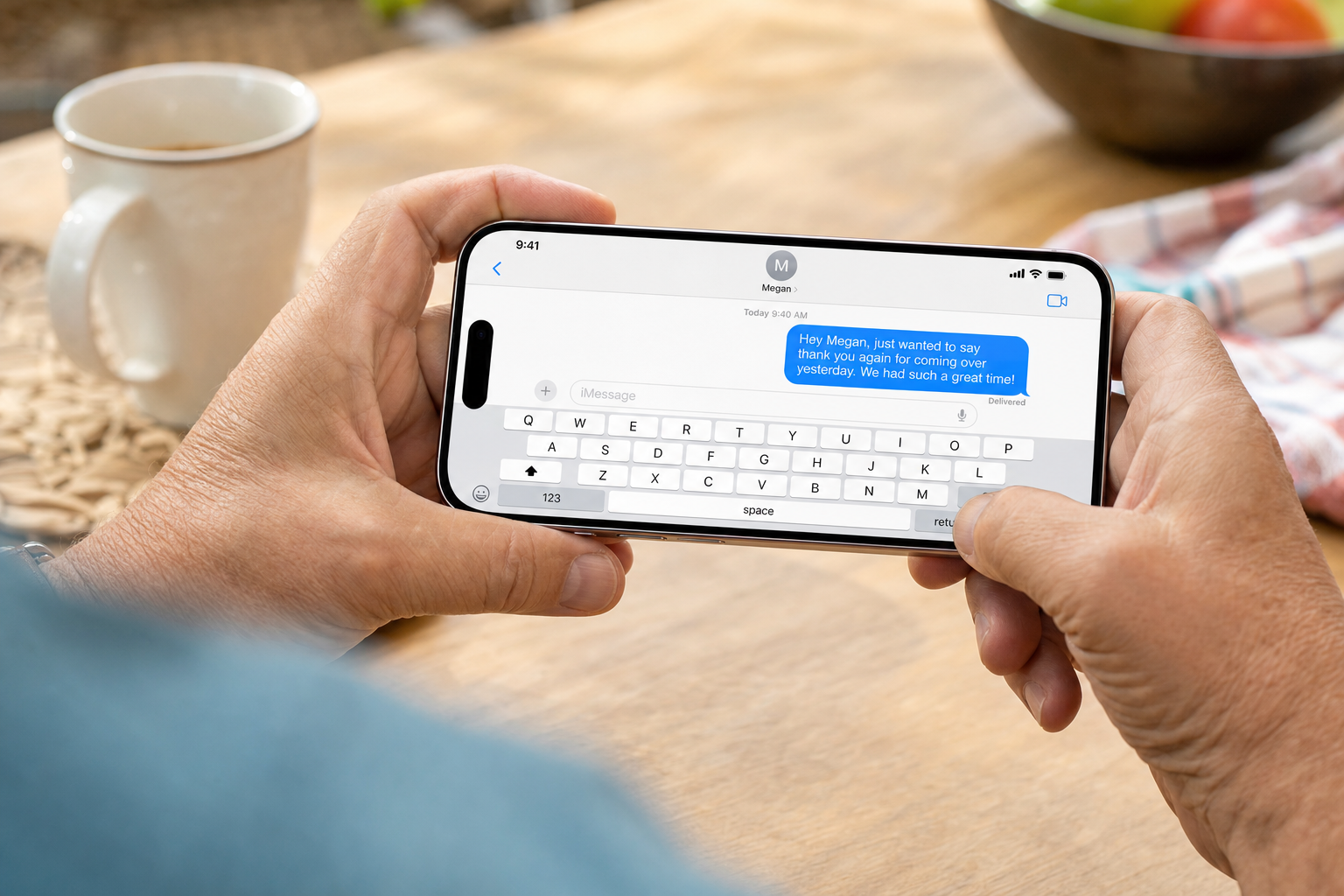
Fun things to do in iMessage include sending expressive bubble effects and full-screen animations like confetti or balloons by typing phrases such as "Congratulations" or "Happy Birthday." You can also personalize your chats with custom stickers, animated GIFs, or hand-drawn sketches to make every message more memorable — and there are even advanced features to schedule texts or translate languages instantly.
Texting with family should feel warm, not like a chore. But a plain "OK" or "Got it" does not exactly light up someone's day. You have probably seen those fun animations — balloons floating up the screen, confetti raining down — and wondered how to send them yourself. This guide shows you how, step by simple step. You will learn the magic trigger words, how to add handwritten notes, and how to use stickers and tapbacks to say more with less typing.
Magic Words: Send Balloons, Confetti, and Fireworks Automatically
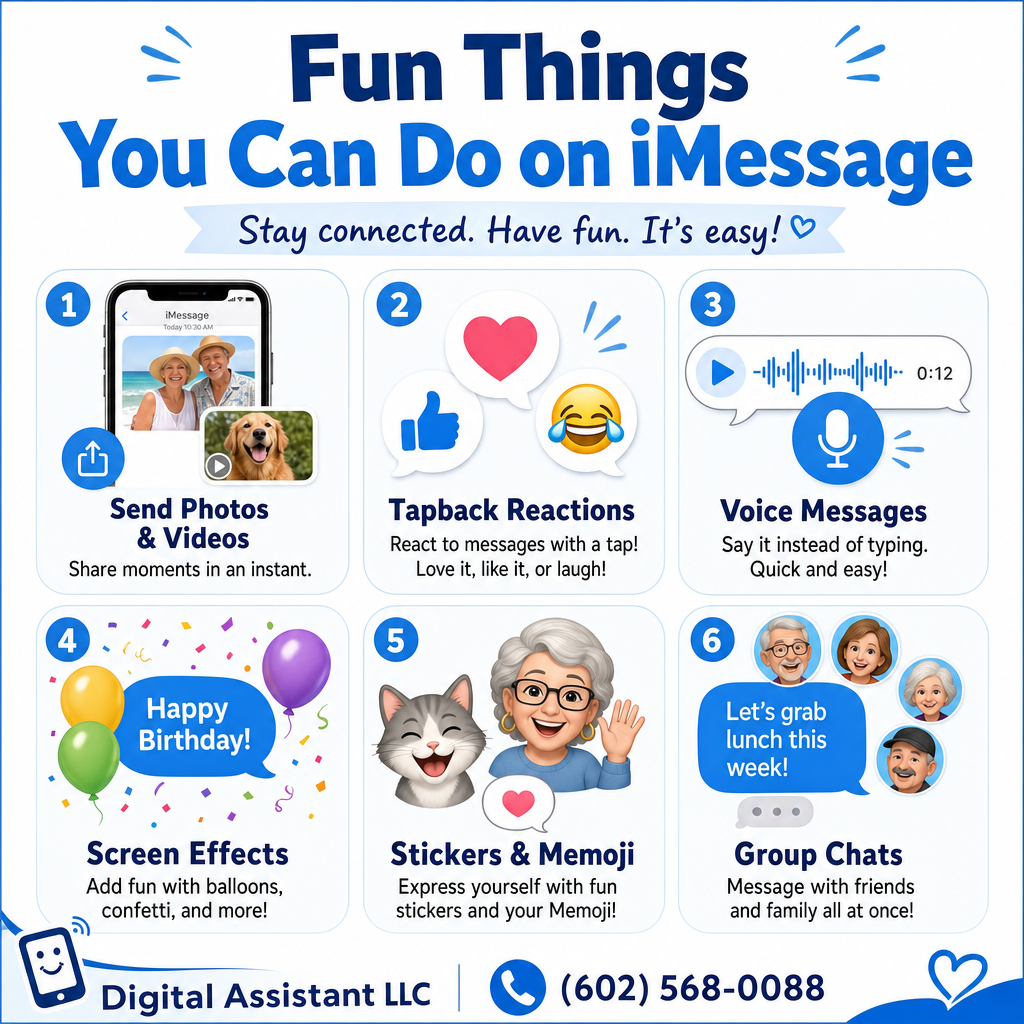
Trigger words are specific phrases that automatically launch a full-screen animation when you send them to another iPhone user. You do not need to tap any extra menus or settings — just type the word and press send. It is one of the easiest ways to add a little joy to a message.
When you type these phrases, the recipient sees a surprise animation that takes over their entire screen. This is one of the most fun things to do in iMessage because it adds a layer of celebration to your daily communication without any technical hurdle.
Trigger Phrase | Visual Effect | Local Example |
|---|---|---|
"Happy Birthday" | Floating Balloons | A party at Encanto Park |
"Congratulations" | Cascading Confetti | Graduating from ASU |
"Happy New Year" | Vibrant Fireworks | Midnight celebrations in the Valley |
"Pew Pew" | Multi-colored Lasers | A playful greeting to a grandchild |
These triggers are perfect for real-life celebrations. Typing "Congratulations" showers your grandchild's screen with confetti on graduation day. Sending "Happy Birthday" floats colorful balloons across a family member's phone. And typing "Pew Pew" — yes, really — surprises them with a laser light show.
Because these effects happen automatically as you type, there are no extra buttons to remember and nothing complicated to learn. During our one-on-one sessions, we love showing clients this feature because it sparks instant joy — with zero frustration.
How to Use Full Screen Effects for Grand Celebrations
While trigger words are convenient, manual full-screen effects offer even more creative freedom. Unlike automatic triggers, these manual animations can be applied to any text you compose, making them one of the most fun things to do in iMessage when you want to emphasize a specific sentiment.
To access these effects, follow these specific steps: 1. Type your message into the text field as you normally would. 2. Instead of tapping the blue send arrow, press and hold your finger on that blue circle for two seconds. 3. A menu titled 'Send with effect' will appear. At the top of the screen, tap the word 'Screen' to switch from the default bubble options to the full-page animations.
Once you are in the 'Screen' menu, you can swipe left or right to preview different options. The 'Echo' effect creates a visual whirlpool, filling the entire background with dozens of copies of your message bubble. 'Spotlight' casts a beam of light directly onto your text, which is excellent for making a serious or important point stand out. For a truly grand gesture, the 'Celebration' effect creates a display of gold sparks and haptic vibrations that mimic a festive atmosphere.
These effects are a lovely way to stay connected, especially when you cannot be there in person. Try the Hearts effect — it sends a flurry of 3D hearts floating up the screen, adding warmth that plain words just cannot match. If you would like a hands-on walkthrough, we are always happy to help you practice.
Adding Personality with Bubble Effects and Invisible Ink
While full-screen animations create a grand spectacle, bubble effects change the way your specific message bubble enters the conversation. This provides a more subtle but equally engaging way to explore fun things to do in iMessage. To use these, long-press the blue send arrow and remain on the 'Bubble' tab rather than switching to 'Screen' at the top of the menu.
Bubble Effect | Visual Impact | Best Use Case |
|---|---|---|
Slam | The bubble crashes down onto the screen, causing a brief ripple. | Announcing big news or a sudden arrival. |
Loud | The bubble expands and shakes briefly before settling. | Expressing excitement or virtual shouting. |
Gentle | The bubble starts very small and slowly grows to size. | Sending a quiet thought or a soft apology. |
Invisible Ink | The text is obscured by a shimmering, blurry film. | Sending surprises or secret messages. |
Invisible Ink is a standout feature for anyone learning iMessage tricks. When you send a message with this effect, the recipient sees only a cloud of moving particles. They must use their finger to swipe across the bubble to reveal what you wrote. This creates a delightful moment of suspense that standard texting lacks.
Imagine sending a secret invitation to a friend: "Dinner is on me tonight at Rustler's Rooste!" By hiding this under Invisible Ink, you turn a simple plan into an interactive surprise. This layer of playfulness helps maintain a sense of spontaneity in your digital life. If you find these menus difficult to navigate, our team provides one-on-one technology help to practice these gestures until they become second nature.
The Personal Touch: Sending Handwritten Messages on iPhone

Sometimes a typed message just does not feel personal enough. That is where handwritten notes come in. This feature lets you use your finger to write directly on the screen — your actual handwriting, sent as a message. It is one of the most personal touches you can add to a text.
To find this hidden tool, open a message and rotate your iPhone sideways into landscape mode. On the bottom right of the keyboard, near the Return key, you will see a small, squiggly line icon that looks like a handwritten loop. Tapping this opens a blank white canvas where you can write a short message or draw a simple sketch. When you tap Done and send it, the recipient does not just see a static image. Instead, the note replays the strokes of your handwriting as an animation, mimicking the motion of a pen on paper. This feels much more intimate than a typed font, capturing the warmth of a physical greeting card.
If the scribble pad does not appear when you turn your phone, your Portrait Orientation Lock is likely active. To fix this, swipe down from the top right corner of your screen to open the Control Center and ensure the icon with the lock and circular arrow is not highlighted in red. If navigating these menus feels overwhelming, a one-on-one session makes learning these hidden gestures simple and stress-free.
Tapbacks and Stickers: Quick Ways to Express Yourself
Beyond the intimacy of handwriting, there are moments when you simply want to acknowledge a message quickly. Tapbacks are one of the most efficient fun things to do in iMessage, providing a way to respond without navigating the keyboard. To use a Tapback, quickly double-tap any message bubble you have received. A menu of six icons will appear: a heart, a thumbs up, a thumbs down, a "HA HA," two exclamation points, and a question mark.
For many clients who work with us, this is a favorite tool because it eliminates the fatigue of typing on a small glass screen. If a family member sends a photo of a sunset over Camelback Mountain, a quick double-tap and a heart icon acknowledges the beauty instantly. It is a polite, fast way to stay engaged in the conversation without the physical strain of hunt-and-peck typing.
Tapback Icon | Common Meaning |
|---|---|
Heart | You love the message or photo. |
Thumbs Up | Approval or a simple "OK." |
Question Mark | You are confused or need more information. |
Exclamation Points | You are surprised or excited. |
Stickers and Memojis take this interactivity even further by allowing you to peel and stick graphics directly onto the conversation. In iOS 17 and 18, you access these by tapping the plus (+) button to the left of the text field and selecting Stickers. You can then press and hold your finger on any sticker to drag it out of the menu and drop it onto a specific text bubble. This visual flair lets you physically place a smiley face or a custom Memoji exactly where it makes the most impact.
Troubleshooting: Why Some Effects Might Not Show Up

It can be frustrating when you follow the steps for fun things to do in iMessage but the animations do not appear as expected. The most common reason for this is the Blue to Green rule. These digital effects only function when both the sender and the recipient are using iMessage. If your message bubbles are green, you are texting an Android user or someone without an active data connection. In these instances, the fireworks or confetti will not trigger because those features are exclusive to Apple's private network.
Another technical barrier often involves your phone's Accessibility settings. Apple includes a feature called Reduce Motion designed to help users who experience motion sickness or eye strain from screen animations. If this is enabled, it will block all message effects from playing automatically. To check this setting, follow these steps:
Open the Settings app on your iPhone.
Scroll down and tap on Accessibility.
Tap on Motion.
Ensure that Reduce Motion is toggled off.
Verify that Auto-Play Message Effects is toggled on.
If you have confirmed these settings and still find iPhone menus tricky to navigate, we are here to help. We provide one-on-one technology help throughout the Valley to make sure your device is properly set up to bring these joyful features to life.
These fun iMessage features turn everyday texts into something that feels a little more personal -- balloons on a birthday, a handwritten note just because, or a quick heart tapback when words escape you. If you would like a hand exploring what your iPhone can do, take a look at our Services page. We would love to help you make technology feel a little more delightful.