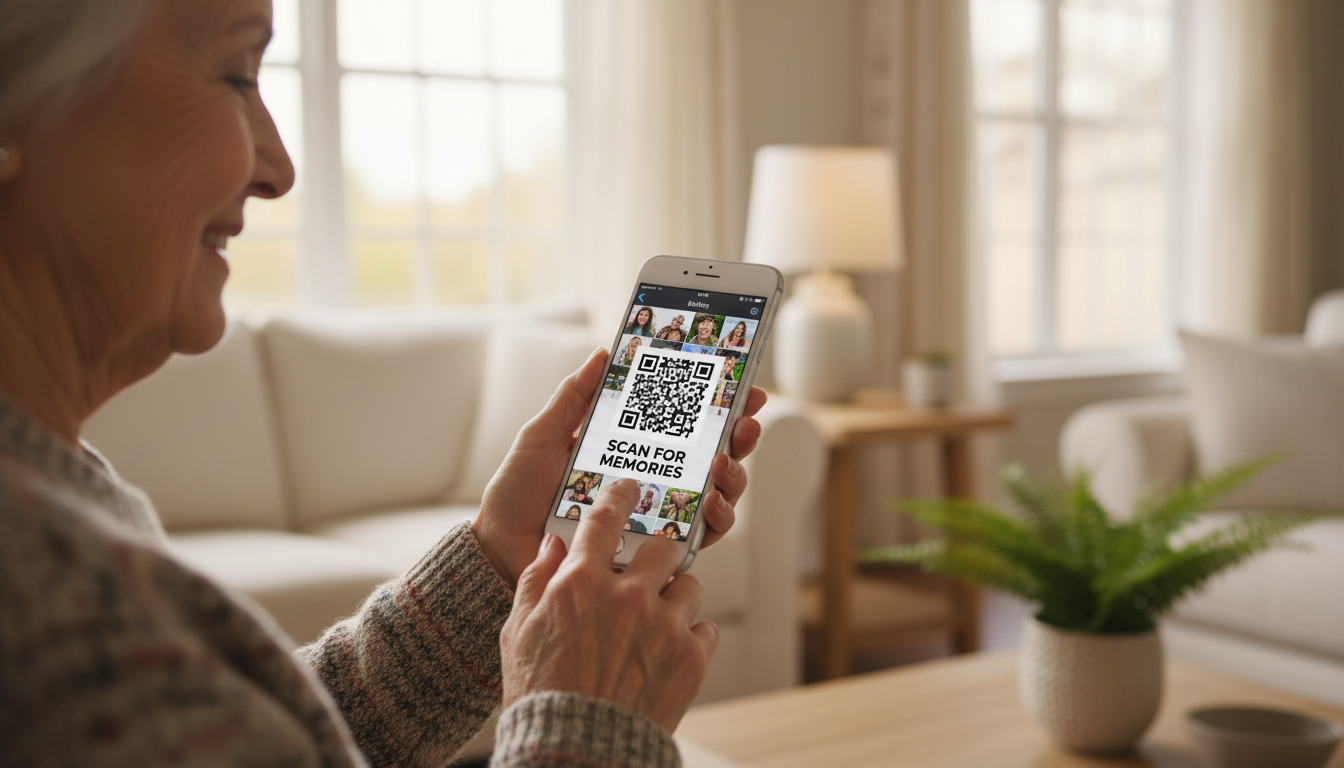
To scan QR code from a photo on your phone, Android users should open the image in Google Photos and tap the Lens icon to process the code. iPhone users can simply open the image in the Photos app and long-press the QR code to open the link instantly. These native features allow you to access information from saved images without using a separate camera.
Sometimes a QR code shows up on your own screen instead of in real life, such as in a text message, an email, or on a website. You cannot point your camera at your own screen, but you do not need to. Your phone can read a QR code that is already saved as a photo.
Here is the easy way to do it on an iPhone and an Android phone.
How to Scan a QR Code From a Photo on iPhone (iOS 15 and Later)
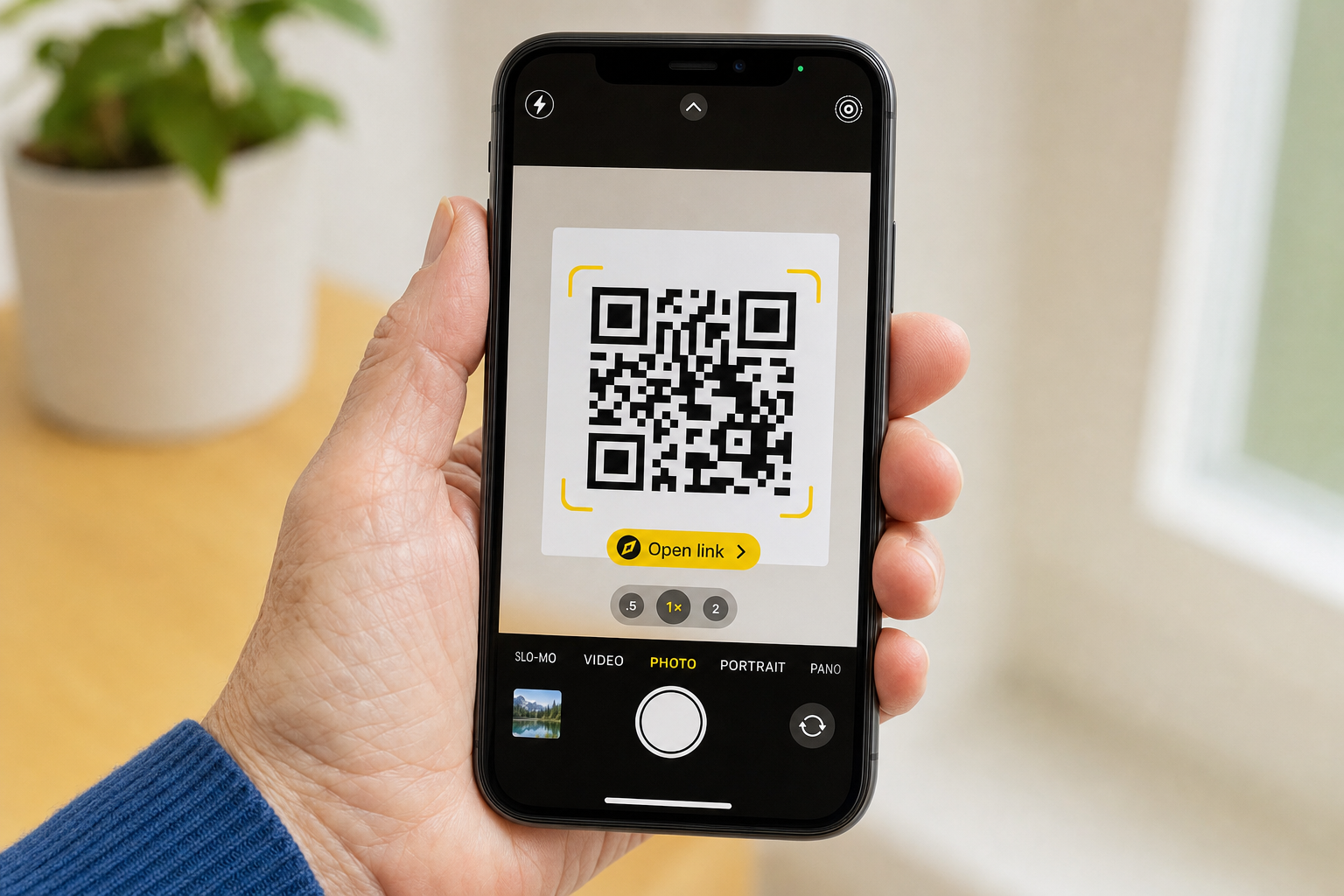
If you have an iPhone running iOS 15 or later, no extra app is needed.
To scan a QR code from a photo on your phone, follow these precise steps:
Open the Photos app and tap the picture or screenshot with the QR code.
Tap and hold (press and keep your finger down) directly on the QR code.
A small menu pops up. Tap Open Link or the website address.
If the menu does not appear, bring the code into the center of the screen and try holding for a moment longer.
Scanning QR Codes From Your Android Gallery or Google Photos
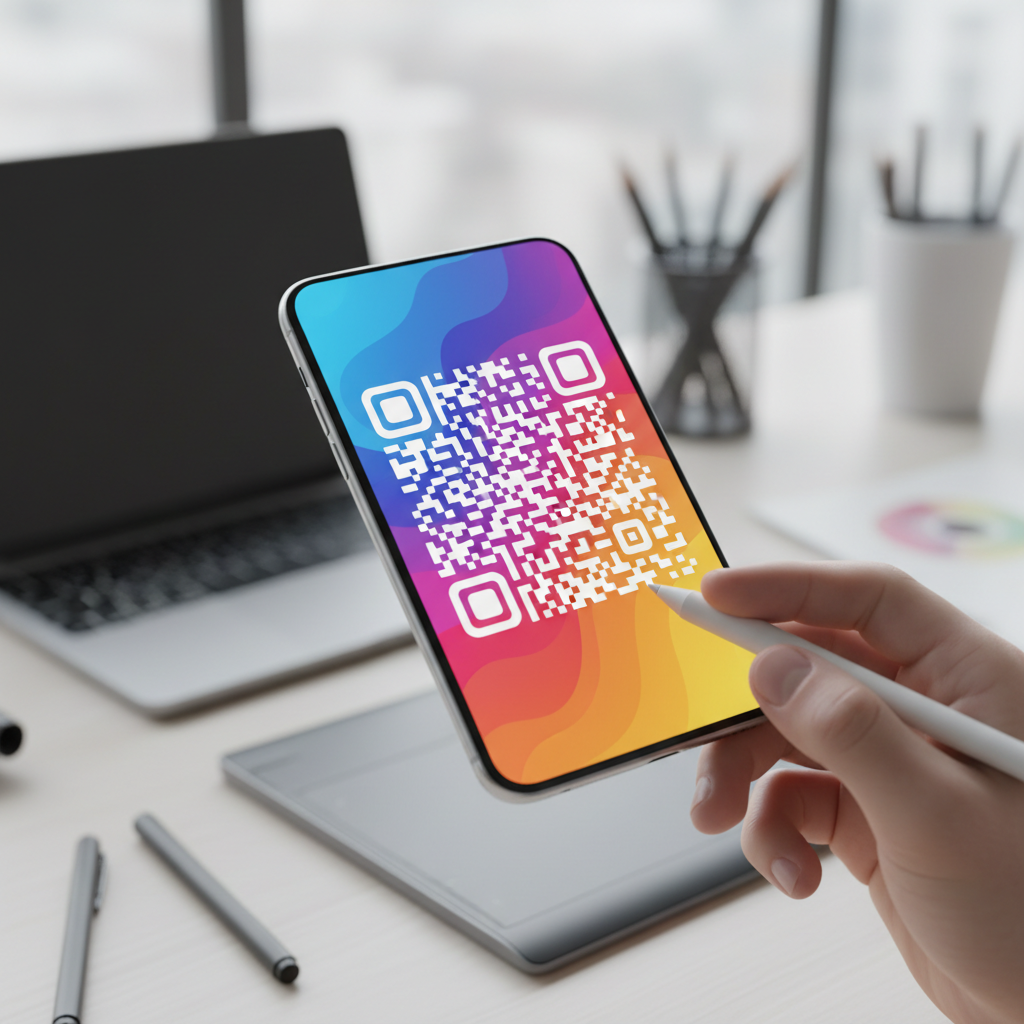
Android phones have a built-in tool called Google Lens that can read QR codes.
Follow these steps to access the information inside your saved image:
Open the Google Photos app (or your gallery) and tap the picture with the QR code.
Tap the Google Lens icon (it looks like a small camera or a square with a dot inside).
The link appears at the bottom. Tap it to open.
On a Samsung phone, the Gallery app also has a Bixby Vision or scan icon you can tap instead.
These built-in tools are safer than downloading a separate scanner app.
The Screenshot Hack: How to Capture a QR Code You See on a Website
If you see a QR code on a website or in an app, you cannot scan the screen you are using. Take a screenshot instead.
On iPhone, press the Side button and the Volume Up button at the same time, then release.
On Android, press the Power button and the Volume Down button at the same time.
The new screenshot is saved like any other photo, so you can scan it using the steps above.
Troubleshooting: Why Your QR Code Photo Might Not Scan
If the code will not scan, it is usually because it is too small, blurry, or partly cut off.
If the code appears very small within a large photograph, try zooming in on the image first. Once the QR code fills more of your screen, your phone often finds it much easier to identify the embedded data.
If your phone is older and does not have these features, you can search for a QR reader app in your app store.
Safety First: How to Avoid QR Code Scams in Phoenix

Scanning a QR code from a photo is a handy skill, but be careful with codes from strangers. Scammers sometimes send codes that lead to fake websites.
Do not enter passwords or payment details on a site a QR code opened unless you trust it. When in doubt, do not scan.
Scanning a QR code from a picture is quick and easy once you know where to tap. If you would like a patient, one-on-one walkthrough of this or any other phone task, our team at Digital Assistant is here to help learn about our services.