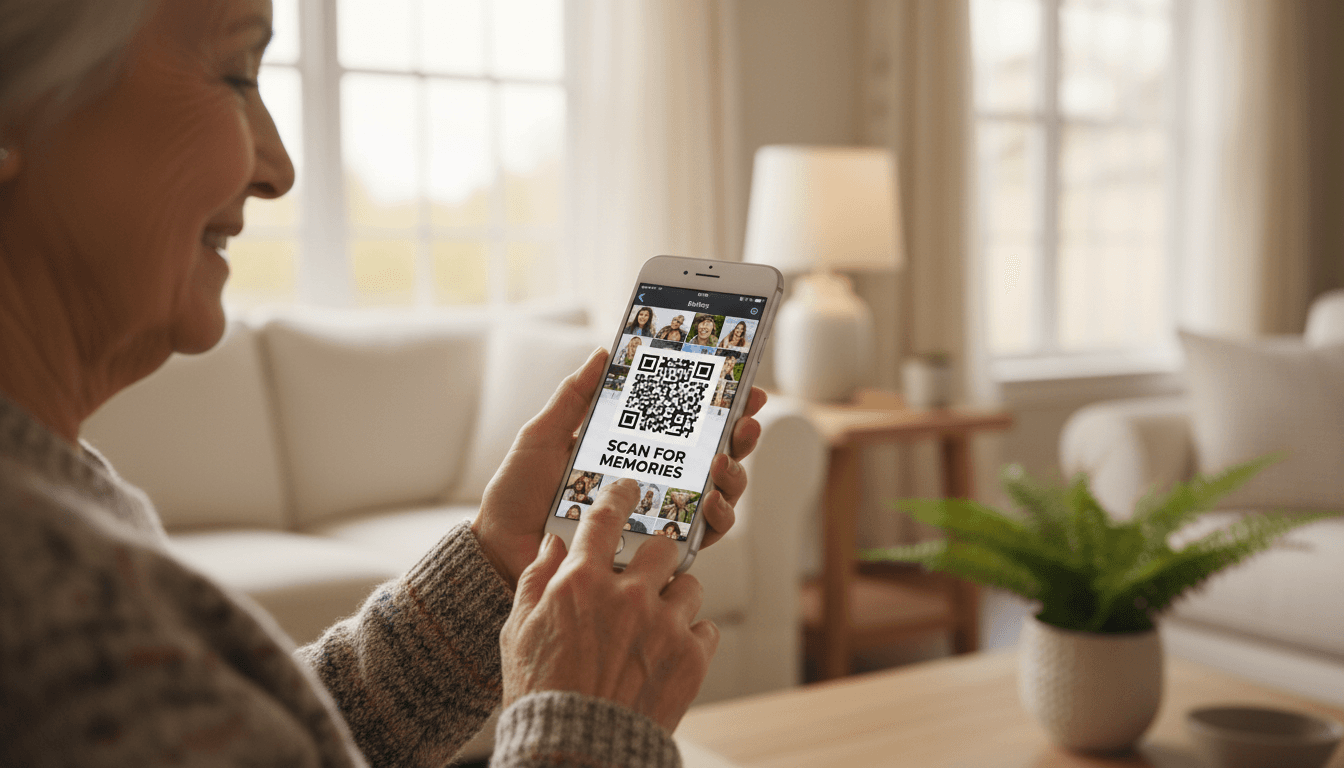
Seniors can manage their digital memories by backing them up to cloud services like Google Photos and iCloud while organizing them into digital albums for easy access. They can also transform these images into physical keepsakes such as photo books, wall calendars, or prints to share with family members. Knowing what to do with photos on phone for seniors ensures that precious moments are safely preserved and enjoyed rather than being forgotten in device storage.
Many individuals find their smartphones have become modern digital shoeboxes, cluttered with thousands of precious memories that feel inaccessible or stuck. This accumulation often leads to a sense of digital paralysis, where the fear of losing a lifetime of images prevents any meaningful organization. Managing these files is essential for preserving your legacy and sharing your history with loved ones. In this guide, I will outline specific methods for transferring images to your computer and navigating cloud services like iCloud or Google Photos. You will discover how to transform these digital files into tangible wall art and vibrant photo books. Furthermore, I will explain the 3-2-1 backup rule in simple terms and provide practical strategies for organizing your library. By following these expert steps, you can secure your digital legacy and enjoy your memories across all your devices.
The Digital Shoe Box: Understanding Why Photos Feel Stuck
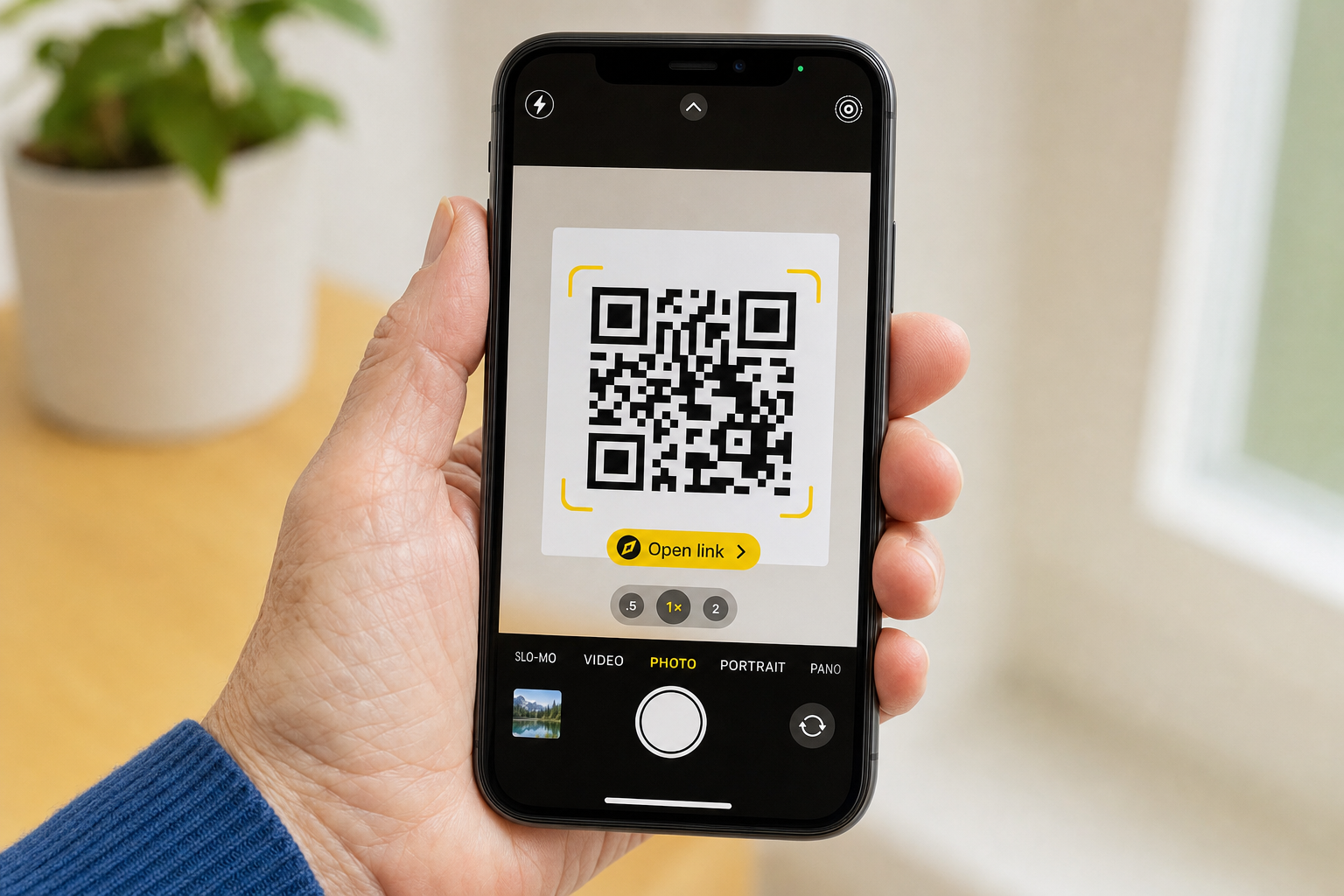
Decades ago, we kept our most precious memories in physical shoeboxes tucked away in closets. Today, those memories reside on smartphones, but the feeling of being overwhelmed remains the same. When a device holds thousands of images, it often feels more like a digital cage than a gallery. Many of our clients ask us what to do with photos on phone for seniors when their library becomes unmanageable and their screen flashes a "Storage Full" warning at the worst possible moment.
The technical barriers are real and frustrating. You might see confusing icons like spinning sync wheels or clouds with slashes through them, leaving you unsure if your photos are actually saved. This uncertainty often leads to a paralyzing fear; if you press the wrong button, will that video of your grandson's first steps disappear forever? These technical hurdles, combined with the sheer volume of duplicates and blurry shots, make the task of organizing feel impossible to start.
At Digital Assistant, we provide personalized assistance with devices right here in Phoenix to solve these exact problems. Unlike remote tech support services that follow a generic script, we offer a hands-on approach to help you declutter your digital library. We sit down with you to navigate these barriers, ensuring your memories are organized, backed up, and accessible rather than trapped behind a glass screen.
Moving Photos from Your iPhone or Android to a Computer
One of the most frequent requests we receive involves moving vast collections of images from a mobile device to a desktop or laptop. While many people search for ways to move files through the air, the most reliable method for a large library remains the physical USB cable. A wired connection ensures that your transfer continues even if your Wi-Fi signal drops, which is vital when you are moving thousands of high resolution memories. When homeowners in Phoenix ask us what to do with photos on phone for seniors, we often recommend starting with a direct cable transfer to a home computer.
For Windows 10 or 11 users, the process begins by connecting your phone to the computer using its charging cable. Once plugged in, open the Windows Photos app. You will look for the Import button, typically located at the top right of the screen, and select From a connected device. If you use an iPhone, you must unlock the phone screen and tap Trust when prompted to allow the computer access to your files. This step is a common sticking point, as the prompt often disappears if the phone locks again.
Mac users have two primary paths. The Photos app is excellent for organizing, but the Image Capture utility is often faster for simply moving files into a specific folder on your hard drive. Open Image Capture while your phone is connected, select your device from the sidebar, and choose your destination folder at the bottom of the window. This method provides a clear view of every file on the device, including those large video files that often trigger storage warnings.
Identifying which cable fits into which port can be the most stressful part of the process. With the transition to USB-C and the variety of older charging blocks, it is easy to feel overwhelmed. This is a core part of the personalized assistance with devices we provide. We help you identify the correct hardware and walk you through the transfer process so you can navigate your folders with confidence. Understanding these physical connections is one of the most important technology resources for seniors who want to ensure their photos are backed up locally before they begin deleting them from their phones to save space.
Choosing the Right Cloud Storage: iCloud, Google, and Amazon
While a physical connection is the gold standard for moving large libraries, cloud storage offers a level of convenience and automation that cables cannot match. Choosing the right service depends on your specific device and how you plan to navigate your memories later.
Service | Best For | Key Advantage |
|---|---|---|
iCloud | iPhone Users | Built-in synchronization; no extra app required. |
Google Photos | Easy Searching | Find photos by typing "cat," "beach," or "grandson." |
Amazon Photos | Prime Members | Unlimited storage for full-resolution photos. |
For iPhone users, iCloud is the default choice because it integrates directly with your existing Apple ID. However, Google Photos is often the preferred choice for those who struggle to remember exactly when a photo was taken. Its powerful search capabilities allow you to find images by typing keywords like "dog" or the name of a specific family member. If you already pay for an Amazon Prime membership, you likely have access to unlimited, full-resolution storage through Amazon Photos, which is an incredible value for preserving high-quality images without extra monthly fees.
One of the most common questions we answer during personalized assistance with devices involves the difference between syncing and backing up. Most cloud services are set to sync by default, meaning your phone and the cloud are mirrors of one another. If you delete a photo from your phone to save space, it will also be deleted from the cloud. This distinction is a critical part of the technology resources for seniors we provide, as misunderstanding it can lead to accidental loss. When determining what to do with photos on phone for seniors, we always recommend verifying your settings to ensure your cloud account is acting as a permanent safety net rather than just a reflection of your phone's current storage.
How to Turn Phone Pictures into Wall Art and Personalized Gifts
Once your images are safely stored in the cloud, the next step is bringing those memories into your physical living space. When deciding what to do with photos on phone for seniors, moving from digital storage to physical display is often the most rewarding stage. One of the most frequent questions we receive in Phoenix is how to turn phone pictures into high quality wall art without the frustration of traditional framing. For this, we recommend Mixtiles. These are lightweight, 8x8 inch tiles that use a special adhesive to stick directly to your walls. They require no nails or hammers, and they can be moved around easily if you decide to change your layout.
For those who prefer a book they can hold, apps like Chatbooks offer a simplified way to create photo albums. You can set these apps to automatically pull photos from your "Favorites" folder to create a recurring monthly book, or you can manually select images for a special occasion. If you are looking for a practical gift, creating a vertical wall calendar is a straightforward process. Using apps like Shutterfly or Mpix, you can select twelve images directly from your phone gallery and assign one to each month. This is a wonderful way to keep family milestones visible on your kitchen or office wall all year long.
While many services ship products to your door, several local Phoenix retailers offer same-day pickup for those who need prints quickly. Major pharmacies and big-box stores throughout the Valley allow you to upload photos through their respective apps and collect physical prints within an hour. This is an excellent option for printing a last-minute photo for a birthday card or a framed gift. Our personalized assistance with devices helps you navigate these ordering screens so you can crop, edit, and purchase with confidence. Providing these types of technology resources for seniors ensures that your digital library doesn't just sit on a chip, but becomes a part of your daily home life.
Viewing Memories on the Big Screen: Smart TVs and Digital Frames

Passing around a small smartphone to show vacation photos can be a strain on the eyes and often leaves half the room waiting for their turn. Modern smart TVs allow you to project your images onto the big screen wirelessly, making your living room a private theater for family slideshows. For iPhone users, this feature is called AirPlay. By opening a photo and tapping the share icon, you can select your compatible TV from a list to instantly mirror your screen. Android users can achieve the same result using the Cast or Screen Mirroring feature found in their settings menu. This method allows everyone in the room to enjoy high-resolution images simultaneously without the need for any cables.
Digital frames offer a more permanent, hands-off way to enjoy a rotating gallery of memories. Brands like Aura and Skylight are particularly effective because they connect directly to your home Wi-Fi and allow family members to send new pictures to your frame via a dedicated email address or a simple smartphone app. This means you can see new photos of your grandchildren as soon as they are taken without ever having to navigate a menu. Setting up these connections between your phone, your TV, and your network can be technically demanding. If you find the setup process for these devices confusing, our personalized assistance with devices includes full smart home integration. We can visit your Phoenix home to ensure your TV and frames are synced perfectly, providing you with the technology resources for seniors necessary to keep your memories front and center.
The 3 2 1 Backup Rule Simplified for Senior Users
While enjoying your memories on a smart TV is wonderful, ensuring those photos are safe for the long term requires a simple strategy called the 3-2-1 backup rule. This sounds technical, but it is actually a straightforward way to protect your legacy. When you wonder what to do with photos on phone for seniors to ensure they never disappear, this rule is the ultimate answer.
First, maintain 3 copies of your important images. The original on your phone counts as one. Second, use 2 different types of media. This means you should not store all copies on the same device. For example, keep one copy on your phone and another on a physical device like a computer hard drive or a USB thumb drive. Finally, keep 1 copy offsite, which usually means using a cloud service.
This layered approach protects your memories against specific risks. If you lose your phone, you still have the thumb drive. If a hardware failure occurs on your computer, your cloud backup remains safe in a secure remote location. Our personalized assistance with devices helps you set up these safeguards so you can rest easy knowing your history is secure. For more detailed guides, you can explore our technology resources for seniors to learn about specific hardware choices that fit your needs.
Practical Tips for Organizing Thousands of Images
Once your backup system is in place, the task of sorting through thousands of images becomes much less daunting. A practical first step in determining what to do with photos on phone for seniors is using the Favorites tool. Tapping the small heart icon on your best photos instantly places them into a dedicated folder. This makes it easy to find your top memories without scrolling through every accidental pocket photo or blurry shot.
To keep your library tidy, organize these favorites into specific albums. You can group images by event, such as a Grand Canyon Trip 2023 or Holiday Dinner. This turns a chaotic stream of images into a structured digital scrapbook. Many users also overlook the powerful search function located under the magnifying glass icon. You can type a specific location, like Phoenix, or a date, like June 2022, to pinpoint a memory in seconds. If the sheer volume of your collection still feels unmanageable, we offer personalized assistance with devices to help you prune duplicates and blurry shots. Our technology resources for seniors provide further guidance on maintaining a clutter free gallery that brings you joy rather than stress.