To set up assistive access iPhone, navigate to Settings, select Accessibility, and tap Assistive Access to begin the guided configuration process. This mode offers a simplified interface with high-contrast buttons and streamlined apps designed to help seniors and individuals with cognitive disabilities use their devices more easily. Users can customize the layout and select specific applications to ensure a focused, user-friendly experience tailored to their needs.
Navigating a modern iPhone can feel like solving a complex puzzle for many seniors, especially when cluttered screens and tiny icons cause frustration instead of connection. This digital friction often leads to unnecessary isolation; however, Apple has introduced a robust solution to bridge this gap. Assistive Access transforms the standard iOS experience into a focused, simplified interface that prioritizes essential tasks over digital noise. In this guide, we will explore the specific technical steps required to implement this feature effectively. You will learn about system compatibility, follow a detailed setup process, and discover how to optimize layouts for specific cognitive needs. Whether you are configuring a device for yourself or seeking professional tech assistance for a loved one in Phoenix, these practical insights will ensure the iPhone remains a tool for independence rather than a source of confusion.
What is Assistive Access and How Does It Benefit Seniors?

Assistive Access is a distinctive interface for iOS designed specifically to reduce cognitive load by streamlining the user experience. While many people think of it as a senior mode, it is technically a comprehensive overlay that replaces the standard, often cluttered iPhone home screen with high-contrast buttons and large text. This feature is fundamentally different from standard accessibility tools like Zoom, which simply enlarges existing elements, or VoiceOver, which provides auditory descriptions. Instead, the assistive access iphone interface reimagines core apps, such as Calls and Camera, by removing non-essential buttons and complicated navigation menus.
For many seniors in Phoenix, the density of modern smartphones can lead to digital fatigue or accidental taps. By activating this mode, users gain a sense of independence; they can navigate their device without the fear of getting lost in deep settings or accidentally deleting important icons. We strive to make digital tools more accessible for our local community, and this feature represents a significant leap forward in making technology help for seniors in Phoenix practical and effective. By focusing only on the functions a user truly needs, it removes the technical barriers that often discourage older adults from staying connected with their families through their mobile devices.
System Requirements: Does Your iPhone Support Simplified Mode?
Before customizing the interface, verify that the hardware and software are compatible. This feature is exclusive to iOS 17 or later versions. To check the current version on the device, open the Settings app, tap General, then select About. If the software version is lower than 17.0, navigate back to the General menu and tap Software Update to install the latest version.
Device compatibility is a frequent point of clarification during our technology help for seniors in Phoenix sessions. While older models remain popular, the assistive access iPhone mode requires a device capable of running Apple's most recent operating systems.
Supported iPhone Models for Assistive Access |
|---|
iPhone 11, 12, 13, 14, 15, and 16 Series |
iPhone XR, XS, and XS Max |
iPhone SE (2nd Generation or later) |
If the device is an iPhone 8, iPhone X, or an earlier model, it will not support this specific simplified interface. For those using older hardware, Digital Assistant provides personalized tech support resources to help find alternative ways to enlarge icons and reduce clutter. Confirming the hardware is ready ensures the setup process remains smooth and frustration-free.
Step by Step Guide to Setting Up Assistive Access
Once you have confirmed your device is running the latest software, you can begin the configuration process. Setting up the assistive access iPhone interface requires a series of deliberate steps to ensure the final experience is tailored specifically to the user’s needs.
To begin, open the Settings app and scroll down to select Accessibility. Locate the General section at the bottom of the list and tap on Assistive Access. From this screen, tap Set Up Assistive Access and follow the on-screen prompts to continue through the initial introduction. You will be asked to verify the Apple ID associated with the device; this is a critical security step that allows you to exit the mode or reset the passcode if it is forgotten.
During the setup, you will be prompted to make several key decisions:
Appearance Selection: Choose between a Grid or Row layout. The Grid option offers a familiar look with large icons, while the Row option provides a simplified list that is often easier for those with limited motor control or visual impairments.
App Management: You must manually select which apps will appear on the screen. While Apple offers specialized, high-contrast versions of the Phone, Camera, and Messages apps, you can also add any third-party app installed on the phone.
Security Configuration: You must establish a dedicated Assistive Access passcode.
This passcode is independent of the standard lock screen code. It acts as a specialized key to enter or exit the simplified interface. For many clients who receive technology help for seniors in Phoenix from our team, we recommend choosing a unique four-digit number and writing it down immediately. Store this code in a secure location, such as a medicine cabinet or a dedicated password logbook. If you lose this code, returning to the standard iOS interface can be difficult without expert assistance. We often use personalized tech support resources to help families document these essential security details during our in-home visits. Completing these steps ensures that the device remains a reliable tool rather than a source of confusion.
Visual Customization: Choosing Between Grid and Row Layouts
Selecting the layout is the most impactful visual choice you will make during the configuration of the assistive access iphone interface. The Grid layout displays apps in a multi column format with oversized icons, maintaining a visual hierarchy similar to the standard iOS home screen but with significantly less clutter. This is an excellent choice for individuals who are comfortable with a traditional smartphone experience but require larger targets for tapping and a simplified navigation path.
For those who prioritize legibility above all else, the Row layout offers a single vertical list. Each app icon is paired with a large, high contrast text label. Our team providing technology help for seniors in Phoenix frequently recommends the Row layout for users with significant vision impairments. The vertical stack reduces cognitive strain by eliminating the need to scan horizontally across the screen. We have found that the Row view provides superior readability when using the device in bright Arizona sunlight, as the text labels remain legible even under intense glare. Providing these tailored options is central to our mission to make digital tools more accessible for everyone in our community.
Optimizing Essential Apps: Calls, Messages, and Camera
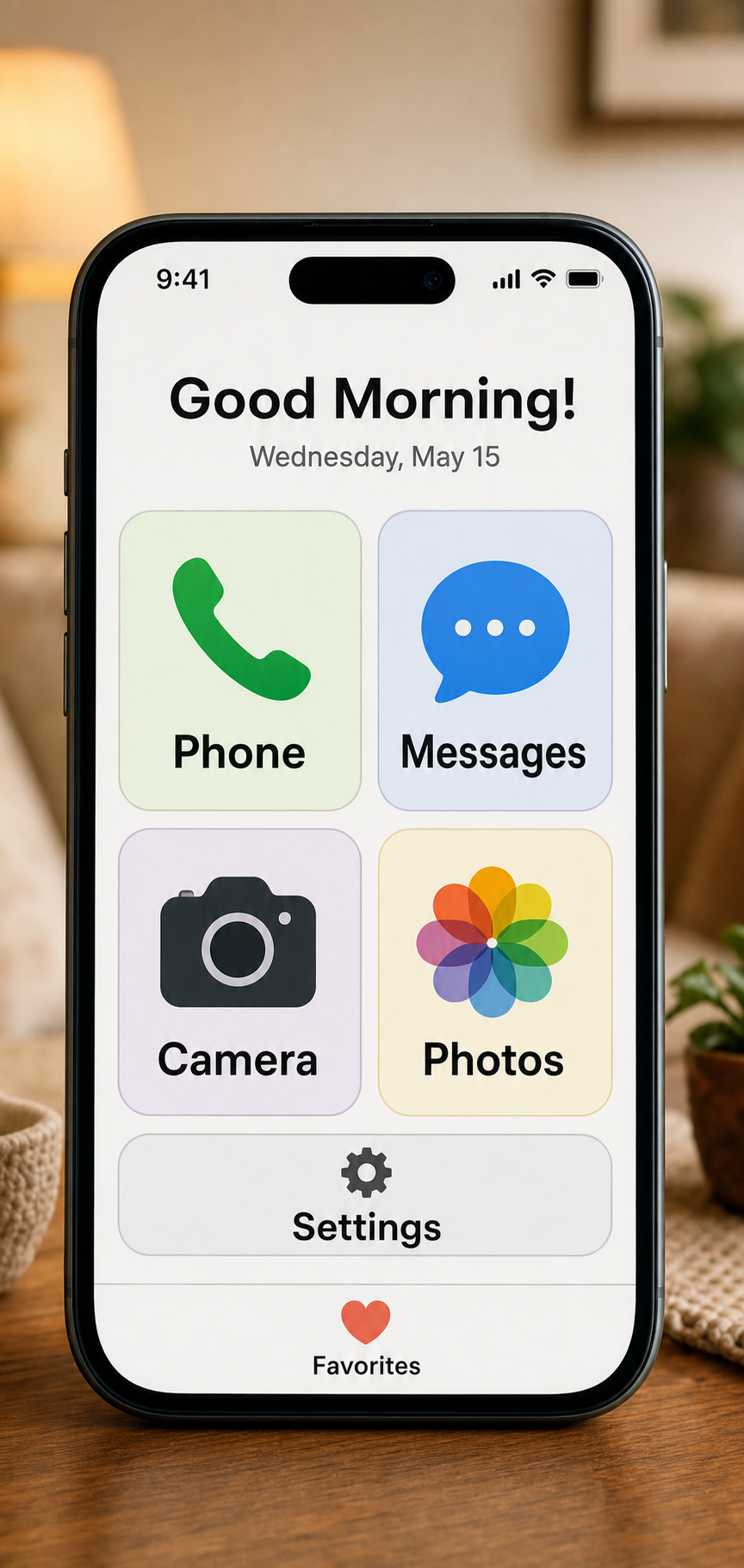
The true power of the assistive access iphone interface lies in how it reimagines core applications to reduce choice paralysis. In standard iOS, the Phone app is a complex hub of recents, favorites, and a numerical keypad. Within this simplified mode, the Calls app is restricted to a pre-approved list of trusted contacts. You can choose to show only specific family members or caregivers, which effectively shields the user from telemarketers and the stress of managing a dial pad. This intentional limitation ensures that staying connected remains a positive experience rather than a source of confusion.
Communication is further streamlined within the Messages app. Recognizing that the standard QWERTY keyboard can be difficult for those with arthritis or cognitive challenges, this version of Messages prioritizes visual communication. The interface focuses on high-visibility buttons for sending video messages or emojis. While traditional texting is still an option, the emphasis on tap-based interactions allows users to stay in touch without the frustration of precise typing. Our team often sees how these digital tools more accessible features boost the confidence of our clients during our technology help for seniors in Phoenix.
The Camera app also undergoes a radical transformation to prevent accidental setting changes. Instead of a screen filled with various modes like 'Portrait' or 'Slo-Mo,' the user is presented with a clean viewfinder and a single, large shutter button. This design eliminates the risk of accidentally switching to a video mode or a filter that would be difficult to undo. By narrowing the scope of these essential tools, the device becomes a reliable companion that performs its primary functions with absolute clarity.
How to Exit Assistive Access Mode Safely
A common concern when using the assistive access iphone interface is the fear of being locked into a simplified view. Apple designed a specific Triple Click safety exit to prevent this. To return to the standard iOS home screen, quickly press the side button three times. On older models with a physical button, such as the iPhone SE, press the Home button three times instead.
After the third click, a keypad will appear on the screen. Enter the dedicated Assistive Access passcode you established during the initial configuration. Once verified, select Exit Assistive Access to restore the full phone functionality. This process is essential when you need to reach deep system settings, such as connecting to a new Wi-Fi network or installing a critical software update. Having this reliable exit path ensures that a caregiver or a senior can manage the device’s backend without losing the benefits of a simplified daily experience. If you find the transition between these modes confusing, our team provides technology help for seniors in Phoenix to walk you through the process during a home visit.
Assistive Access for Dementia and Cognitive Support
For individuals living with dementia or age-related cognitive decline, a standard smartphone interface is often a source of confusion rather than a tool for connection. The assistive access iphone feature serves as a protective environment by drastically limiting the interface to its most basic elements. You can configure the device to show only two or three essential apps, such as a curated Photos album and a FaceTime link to a single family member. This extreme simplification reduces choice paralysis and the anxiety that frequently arises when a user is faced with a screen full of unrecognizable icons.
A significant benefit for caregivers is the hidden nature of system settings within this mode. During our technology help for seniors in Phoenix, we frequently encounter situations where a user has accidentally enabled Airplane Mode or silenced the ringer, leading to missed calls and unnecessary worry. In this simplified interface, critical settings like Wi-Fi, cellular data, and volume are tucked away, preventing accidental modifications. The phone remains in a predictable, functional state, ensuring the senior can always be reached. By making digital tools more accessible through these intentional restrictions, you provide the user with a sense of mastery over their device while maintaining a reliable communication link for the entire family.
Getting Professional Tech Help in Phoenix
While this guide provides a solid foundation for configuring the assistive access iphone interface, every individual has unique communication habits and comfort levels. Digital Assistant offers personalized technology help for seniors in Phoenix to ensure this mode is fine-tuned for your specific daily routine. Our experts provide in-home setup services throughout Phoenix, Scottsdale, and Sun City, taking the guesswork out of technical configurations.
A professional setup goes beyond just turning on a feature. We help you curate the perfect list of trusted contacts, select the apps that truly add value, and ensure the passcode is safely documented for family members. Having a specialist visit your home allows for hands-on training in a familiar environment, making digital tools more accessible without the stress of trial and error. If you need additional guidance or prefer a one-on-one walkthrough, our personalized tech support resources are designed to bridge the gap between complex software and meaningful connection. We ensure your device works specifically for your lifestyle and needs.